
Last updated on September 4, 2026
By default, Canvas shells for MSU Denver classes are programmed to open on the Saturday before classes begin. Starting from this date, students can view and interact with published content.
Final Exams happen the week after classes officially end, with students losing access to the course about a week after grades are due.
The MSU Academic Calendar shows the exact date that classes will start and end.
You can change the start and end date of your Canvas course in the course settings if you would like students to be able to access the course on a different timeline.
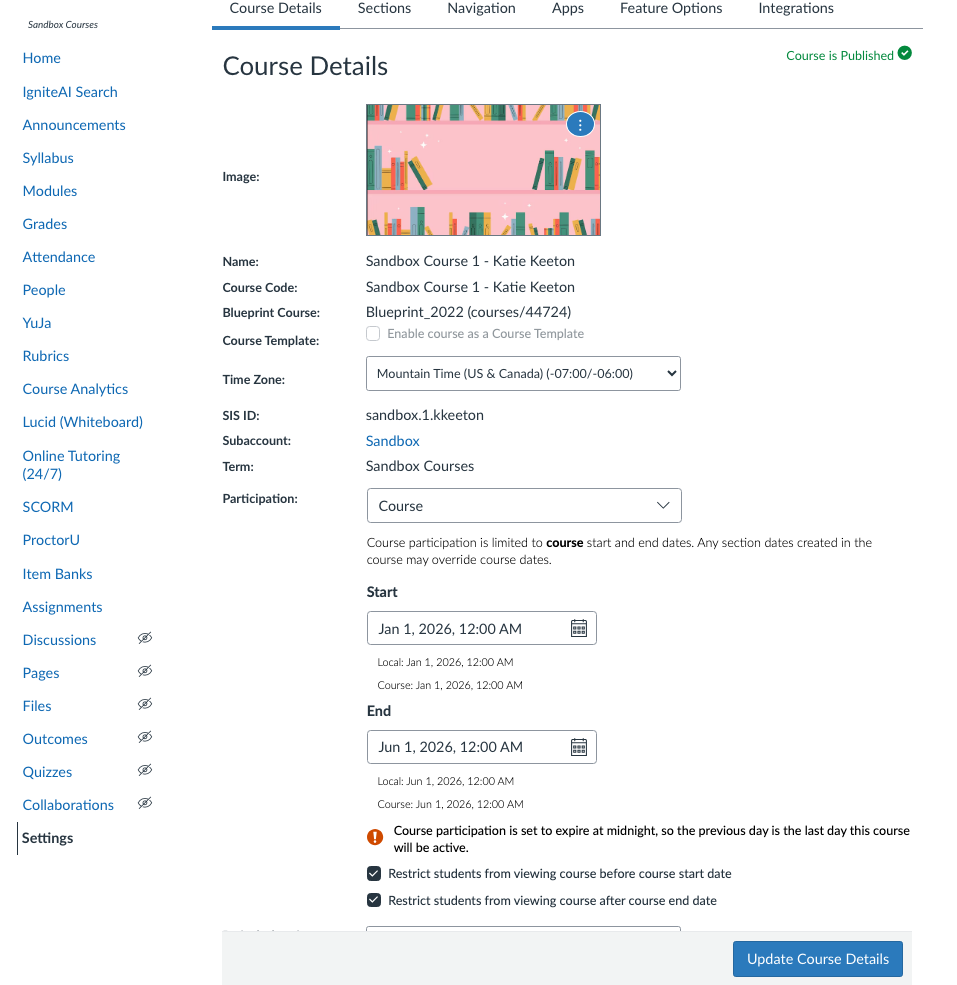
Change the Start and End Date for a Canvas Course
- Log in to your Canvas Account.
- Select the Course you’d like to work in.
- Click settings in the left-hand course navigation menu
- Scroll down to the Participation section.
- Click the calendar icon under Start.
- Select the desired Start Date for the course.
- This is the day that students will be able to open and view the course.
- Click the calendar icon under End.
- Select the desired End Date for the course.
- This is the day that students will lose access to the course.
- Optionally: Uncheck the box next to Restrict students from viewing course before course start date if you would like students to be able to view course content before the start date.
- Students will only be able to view published content before the start date. They will not be able to interact with any of the content until the start date.
- This can be useful if you would like students to be able to view things like Announcements or the Syllabus early.
- Optionally: Uncheck the box next to Restrict students from viewing course after course ends if you would like students to still have access to course materials after the end date.
- Students will only be able to view published content after the end date. They will not be able to interact with any of the content once the end date has passed.
- This can be useful if your course includes resources that students might want or need later in their academic career.
- Click Update Course Details at the bottom of the screen to save your new start date.
Have Questions?
Need additional support on this or other teaching and learning topics? Please visit us for drop-in support or try one of our self-help tutorials.
Ready to take your teaching to the next level? Opt into our Connections with CTLD newsletter!