Last updated on March 27, 2026
In your course, you may want to ensure students are looking at certain documents closely to see their understanding and interpretations of the information. One way to do this is through Canvas’s Student Annotation option in Assignments. Student Annotation assignments allow you to upload a document, such as an article, primary source, or chart, and have students annotate it directly within Canvas. Students can highlight, draw, leave comments, and more.
This option is good for documents that you want each student to annotate on their own, without being able to view any of their classmates’ work. For more collaborative annotation assignments, where you want students to view and respond to annotations left by their classmates, see our tutorial Set Up Hypothesis Documents and Assignments in Canvas.
Contents
Directions
Create a Student Annotation Assignment
- Log in to your Canvas Account.
- Select the Course you’d like to work in.
- Click Modules from the course navigation menu on the left.
- Locate the Module you want to add the Annotation Assignment to.
- Click the + button to the right of the module name.
- Click Create Assignment.
- Enter an Assignment Name.
- Click Add Item.
- Click the Assignment name to open it.
- Click Edit in the top right of the screen.
- Type Assignment Directions into the Rich Content Editor.
- Note: Ensure to write out clear directions for how to use the annotation tools, as well as how many and what type of annotations you expect the students to submit. See below for what the assignment looks like from a student’s perspective.
- Scroll down to Submission Type.
- Select Online from the dropdown menu.
- Select Student Annotation.
- Select the File Location to upload the file.
- Course Files: Files that have already been shared with the course somewhere else.
- My Files: Files that have been uploaded into Canvas, but not yet shared with students. Uploading files into Canvas first can help ensure the file copies over correctly when copying your course over for a new semester.
- Upload File: Upload a file from your computer.
- Select the file you want students to annotate.
- Note: Ensure the document is accessible before uploading it. If using a PDF, it must recognize the text and be searchable in order for highlighting to work, and for students using Screen Readers to be able to access it. View how to make your PDF accessible here.
- Fill out the rest of the Assignment Settings.
- For more guidance, see our tutorial, Create an Assignment.
- Note: Group assignments are not currently supported when using the Student Annotation option.
- Click Save or Save and Publish.
Student View of Annotation Assignment
You can view the assignment from the student’s perspective by clicking View as Student in the top right of the assignment page. Note that the assignment needs to be published for this to work.
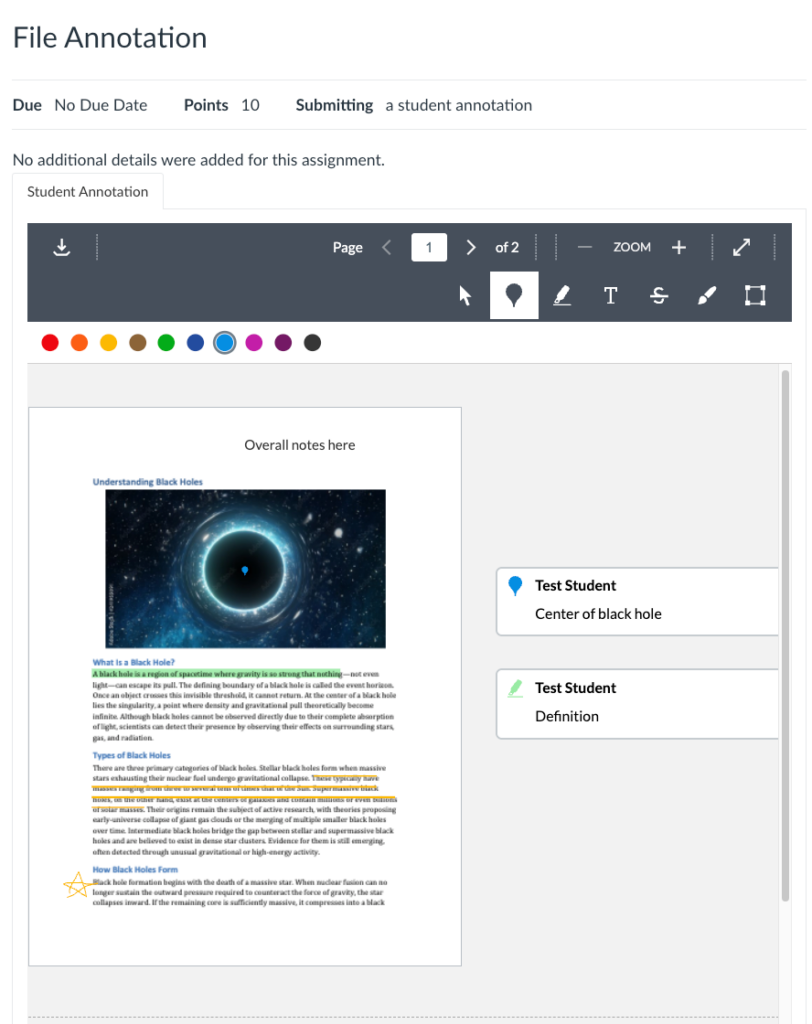
When students go into the assignment and start the attempt, they will see a window within the Canvas page showing the document with an annotation toolbar at the top. They can download the document, zoom in or out, and expand the annotation workspace to full screen. Canvas will save their work automatically, so they can leave the assignment before submitting, and their annotations will still be there when they go back into it. The instructor will not be able to see any of their work/annotations until they have submitted the assignment.
When viewing the submission within Speedgrader, you will see the original document along with all annotations the student made. You will be able to reply directly to any comment annotations the student made, as well as annotate the document yourself. See our tutorial Use SpeedGrader in Canvas for more information about annotating student submissions.
The different types of annotations that students can use are:
- Pointer (arrow cursor) – allows students to select text before determining the type of annotation to use.
- Pin – drop a “pin” on the document and leave a comment to the side.
- Highlight – highlight a portion of the assignment, click the button that appears to the right to also leave a comment.
- Freetext – write text annotations directly on the assignment.
- Strikeout – strikeout text in the assignment, click the button that appears to the right to also leave a comment.
- Free Draw – draw a shape/circle around a piece of the assignment, click the button that appears to the right to also leave a comment.
- Area (Rectangular Box) – draw a rectangular box around a portion of the assignment, and click the button that appears to the right to also leave a comment.
- Note: Students can select the color for these annotation options in the upper left after choosing the annotation type.