
Last updated on September 4, 2026
In the Gradebook of your Canvas course, you notice that all or some of your students have a grade of 0 for one or more assignments before the due date has arrived. You have not graded the assignments yet, or maybe your students have not even submitted them yet.
This can sometimes happen when copying a course if the setting to apply grades automatically for missing or late submissions is turned on in the Gradebook, and assignments with due dates in the past are copied into the course. This causes Canvas to give all students a grade of 0 for the assignments immediately after they are enrolled.
Thankfully, there’s a fix for this problem. You can manually change the grades by clicking on a student’s score and deleting the zero, or you can set a new default grade to show no score.
Set a New Default Grade for the Entire Column
Important: Only use these steps for assignments that have not been graded yet. If you have already entered grades, this will overwrite or remove existing scores.
- Log in to your Canvas Account.
- Select the Course you’d like to work in.
- Click Grades from the left-hand course navigation menu.
- Click the 3 dots next to the name of the assignment in the gradebook.
- Click Set Default Grade from the drop-down menu.
- Leave the grade value box blank.
- Check the box below that says “Overwrite already-entered grades.”
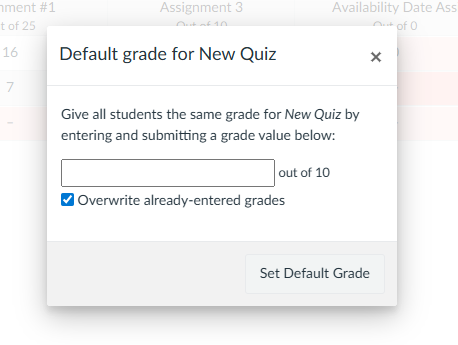
- Click Set Default Grade on the bottom right of the pop-up window.
This will change all of the zeros in the column to reflect ungraded status.
Have Questions?
Need additional support on this or other teaching and learning topics? Please visit us for drop-in support or try one of our self-help tutorials.
Ready to take your teaching to the next level? Opt into our Connections with CTLD newsletter!