
Last updated on October 30, 2026
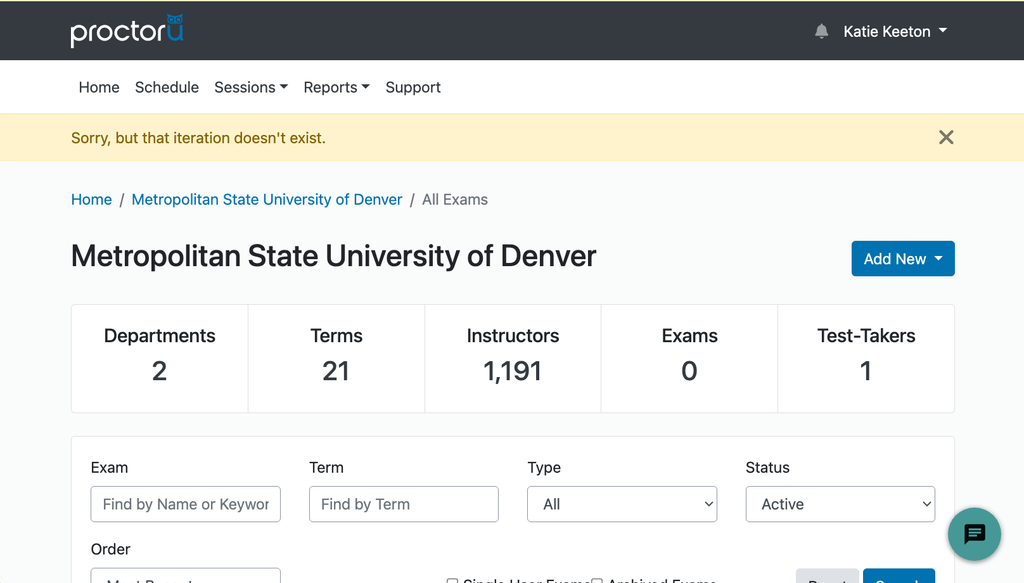
When you set up an exam through ProctorU, you will receive an email with the subject line, “Please confirm your session.” The email will ask you to click the Review Exam Information link to review the details of your exam. However, clicking on the link will bring you to a page in ProctorU with a yellow banner stating, “Sorry, but that iteration doesn’t exist.” Additionally, clicking on a Reservation Link from the User Reports page for a Record+ exam will also bring you to a page with a yellow banner stating, “Sorry, but that reservation doesn’t exist.”
This is because ProctorU exams can only be accessed from your Canvas course. You can ignore the confirmation email and the Review Exam Information link. The exam should still be active, and students should be able to access it by clicking ProctorU from your left-hand course navigation menu. You can double-check that your exam is active by following the steps below.
Note: If the link brings you to a page to sign in, you will not be able to sign in to ProctorU using your MSU Denver credentials. Instead, you must have ProctorU open in your Canvas Course before opening a link from ProctorU. For guidance on accessing ProctorU links, such as Incident Reports, view our FAQ: How do I view incident reports for my ProctorU Exam?.
Check that your Exam is Active
- Log in to your Canvas Account.
- Select the Course you’d like to work in.
- Click ProctorU LTI1.3 from the left-hand course navigation menu.
- Click Authorize from the pop-up window.
- Click Proctored Exams from the tabs at the top left of the ProctorU page.
- Click the Settings Gear to the right of the exam name.
- Note: If you do not see your exam under Proctored Exams, your exam is not set up through ProctorU. View our tutorial, Set Up a ProctorU Exam in Canvas, for more guidance.
- If Deactivate Exam is at the bottom of the drop-down menu, your exam is active.
- Note: Click Activate Exam if it appears to activate your exam.
- Click Exam Summary from the drop-down menu to view the settings for your ProctorU Exam.
- Scroll down to the Exam Windows section of the summary.
- Check that the Exam Start Date and the Exam End Date are accurate.
- If the Start and End Dates are incorrect, you will need to change the Available From and Until Dates in the Canvas Quiz. Once you have adjusted the dates, click Sync Exam Data from the Exam settings drop-down menu in ProctorU.
Additional ProctorU Resources
- How do I view incident reports for my ProctorU Exam?
- How do I set up online proctoring for exams through a third-party publisher?
- How do I disable ProctorU in my course?
- How do students access exams with ProctorU?
- Proctor Online Assessments
- Set Up a ProctorU Exam in Canvas
- How do I proctor an exam in my course?
Have Questions?
Need additional support on this or other teaching and learning topics? Please visit us for drop-in support or try one of our self-help tutorials.
Ready to take your teaching to the next level? Opt into our Connections with CTLD newsletter!