
Last updated on October 16, 2026
If you are using ProctorU for exams in your course, it is important to provide clear directions to your students on the ProctorU requirements as well as the steps for accessing and taking the exam. You may choose to share the steps a day or two before the exam window in a Course Announcement or a Canvas Page. It is also recommended to provide information about ProctorU in your Course Syllabus.
Below are instructions for Record+ exams that you can copy and paste for students to follow. If pasting into a Canvas Item that uses the Rich Content Editor, such as a page or announcement, the formatting including heading, images, captions, and alt. text should all copy over correctly. However, it is best to double check this.
Students will have to login to Canvas, click ProctorU, and then click Start Session next to the exam name. Students will not have to schedule their exam for Record+ exams. Once you paste the directions into Canvas, you can review them and make any course specific changes.
If your exam is Live+, students will have to schedule an exam and pay for their session. Please refer to ProctorU’s support page, How to Schedule, Reschedule, or Cancel an Exam, for guidance.
For guidance on creating an Exam through ProctorU, view our tutorial, Set Up a ProctorU Exam in Canvas.
Student Instructions for Record+ Exam
ProctorU Information
Exams in this course will be given through ProctorU, an online proctoring service that records your exam session and reviews it afterward for any suspicious behavior. Before beginning an exam through ProctorU, you will complete a short setup process including: verifying your identity, checking your computer and browser, and scanning your testing environment. During the exam, your webcam, microphone, and computer screen will be recorded to help maintain the integrity of the assessment. The recording will then be reviewed by ProctorU and flagged for any suspicious behavior. All flags will then be reviewed directly by your instructor. If you have any concerns about using ProctorU, please reach out to your instructor directly.
You do not need to schedule or pay for your exam session for the exams in this course. Instead, you can start the exam anytime during the Exam Window by opening the Canvas Course, clicking ProctorU, and clicking Start Session next to the exam name. However, it is recommended you don’t wait until the last minute to take your exam in case you run into any issues.
Before taking the exam:
- Ensure you are in a quiet and secure location free from other people or distractions.
- Review the ProctorU Equipment Requirements.
- For information about how to check out a space in the Auraria Library Computer Lab, visit the Auraria Library Computing Support Page.
- Have an acceptable photo ID ready.
- Clear your workspace of phones, notes, books, additional devices, or other materials unless your instructor specifically allows them.
- You will need your phone or another reflective device to complete the room scan. Please remove your phone from your environment after completing this step.
- Disconnect additional monitors and close programs that are not needed for the exam.
- Remove earbuds, headphones, watches, and non-religious head coverings unless they are specifically permitted.
- Review the Test-Taker Support Page to know how to reach out to ProctorU Support in case you run into any issues.
Steps to Access and Take Exam through ProctorU:
- Log in to your Canvas Account using Google Chrome or Firefox.
- Select the Canvas Course you are taking the exam in.
- Click ProctorU LTI1.3 from the Course Navigation menu on the left.
- Locate the Exam Name. It should appear under Active Exams on the ProctorU page that opens.
- Click Start Session to the right of the Exam Name.
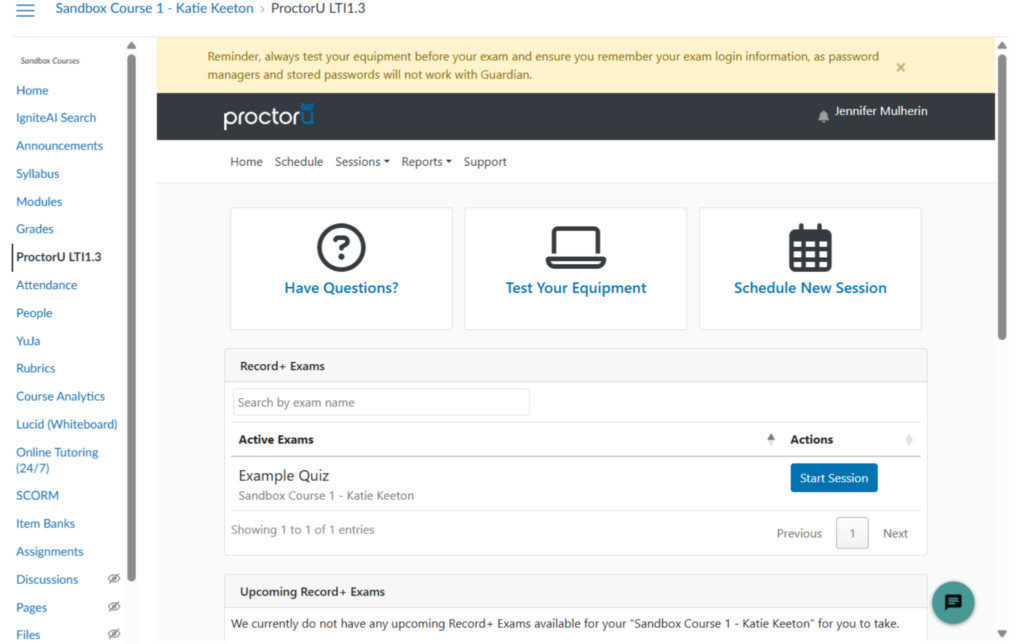
- A pop-up will appear prompting you to launch the Guardian Browser.
- If this is your first time using ProctorU, click Download, and follow the onscreen prompts to download the Guardian Browser.
- If the Guardian Browser is already downloaded onto your device, click Open Guardian Browser.
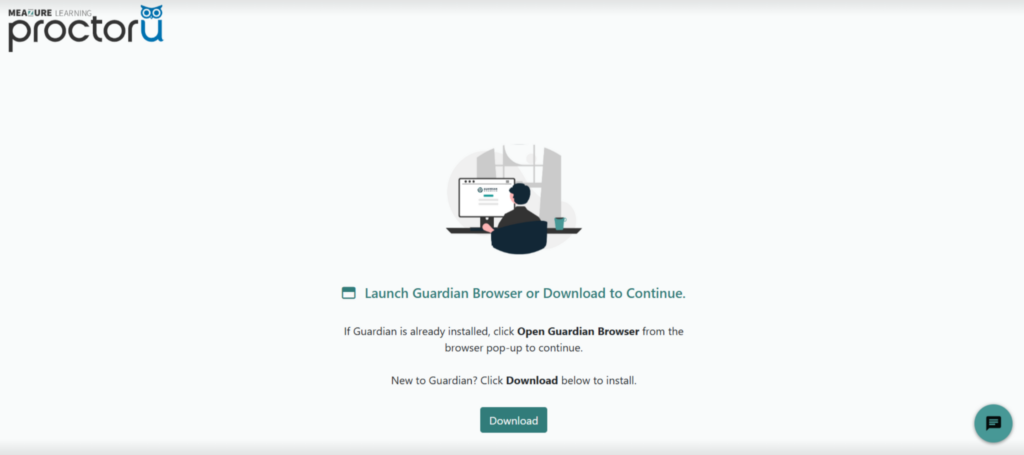
- The Guardian Browser will automatically load the precheck screen for the exam.
- If the precheck screen does not automatically load, login to Canvas from the Guardian Browser and follow the same steps as above to open the exam.
- Follow the onscreen prompts to complete the precheck.
- Make sure to read the Exam Rules carefully so you know what is allowed and what isn’t.
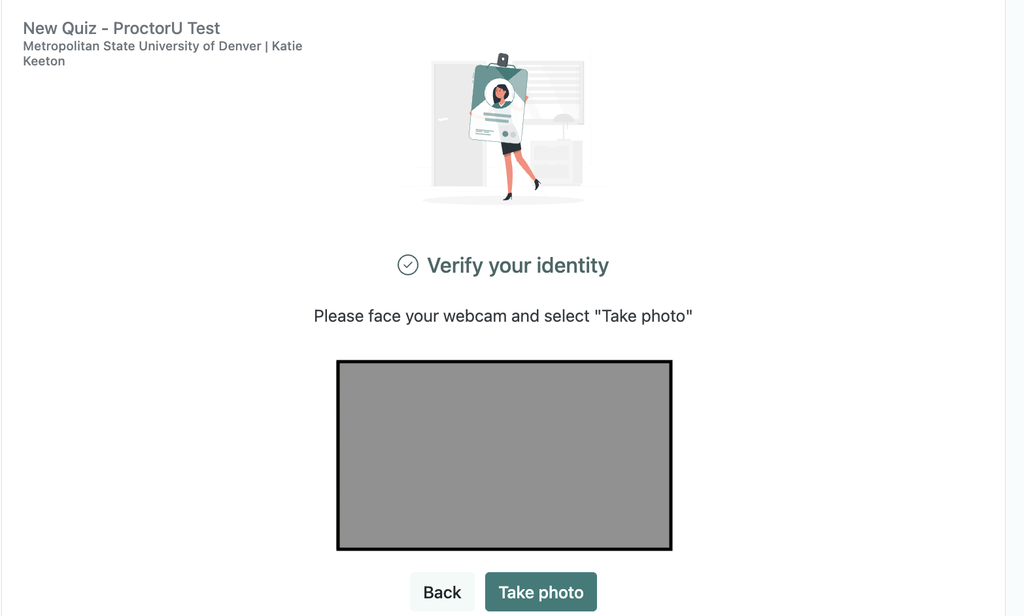
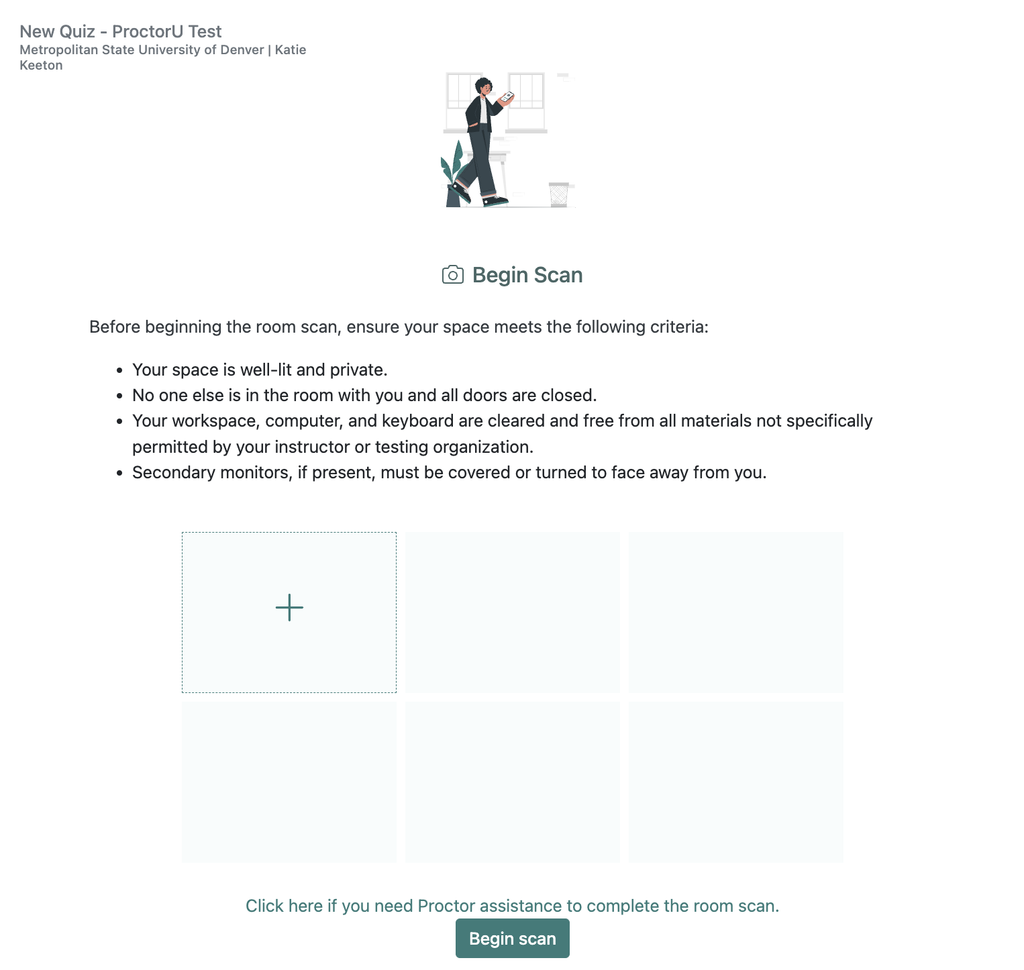
- Once your prechecks are complete, you can start taking the exam.
- Submit your exam when done.
- Once your exam is submitted, you can exit out of the Guardian Browser.