
Last updated on October 26, 2026
Canvas Portfolio is a designated space for students to submit evidence towards their learning and reflect on their work. Canvas offers both Evaluation Portfolios, created by the instructor, and Showcase Portfolios, created by the student. Once published, students can enable sharing for both portfolio types, which will create a Share Link that students can share with anyone they choose, both inside and outside MSU.
Canvas Portfolios will remain available for students to view, edit, and share as long as their Canvas Account is active, which is for 3 semesters after graduation, including the Summer semester. After that, students will need to export their Portfolio and download any attached files to retain access to their work.
This FAQ provides step-by-step instructions you can copy and paste for your students on how to share and export a Canvas Portfolio. For instructions to provide students on creating and adding evidence to a Portfolio, view our FAQ, How do students create and submit evidence to a Canvas Portfolio.
Directions for Students
- Log in to your Canvas Account.
- Click Account (Profile Picture) from the left-hand Global Navigation Menu.
- Click Portfolio from the options that appear in the left-hand panel.
- Click Assigned to view any assigned Evaluation Portfolios, or Showcase to view your created Showcase Portfolios.
- Click the Portfolio Name to open it.
- Click Share at the top right of the Portfolio page.
- Note: For Showcase Portfolios, your portfolio must be published for this to appear. Once your Portfolio is complete and ready to share, click Publish portfolio at the top right of the screen from the Edit page.
- Click the toggle at the top of the right-side panel next to Allow anyone with the link to view to allow people inside and outside the university to view your portfolio.
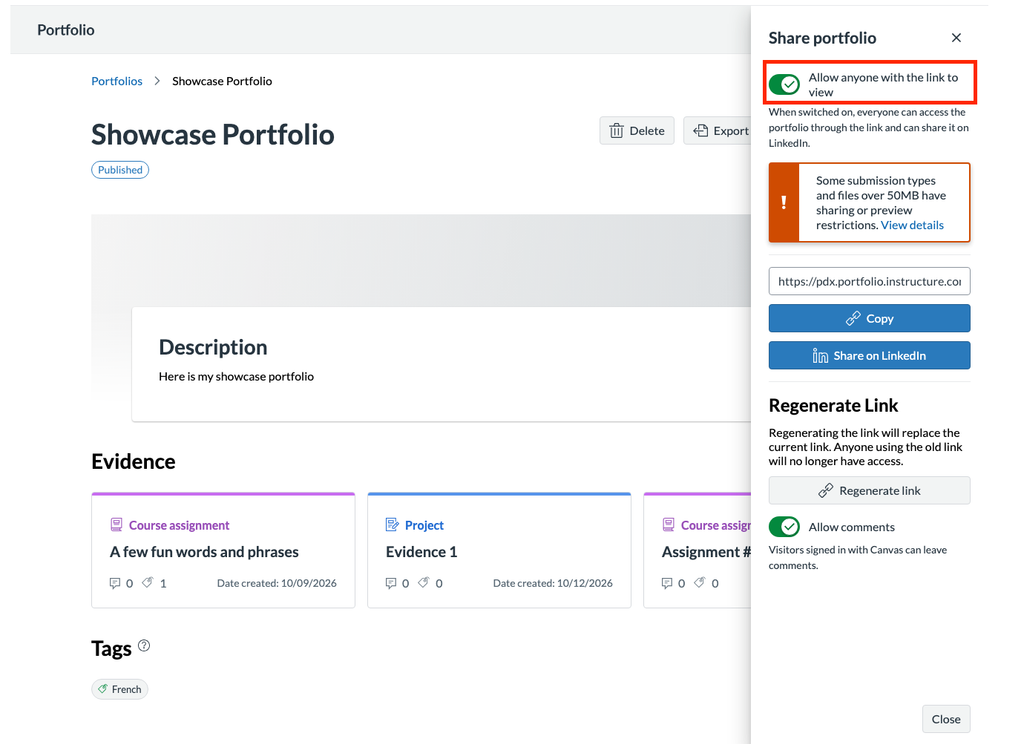
- Click Copy under the URL field to copy the Portfolio Link to share with specific people.
- Click Share on LinkedIn to create a LinkedIn post with your Portfolio link.
- Note: Remember that anyone with the link can view your portfolio, so only share your portfolio on LinkedIn if you are comfortable with anyone viewing it.
- Click Regenerate link if you made any edits to your portfolio to replace the current link with one that includes your edits.
- Note: You will need to reshare the regenerated link for anyone to see updates to your portfolio.
- Click the toggle next to Allow comments to allow anyone logged into Canvas with an MSU account to comment on your portfolio.
- Note: Anyone with the Share link can view the comments if this is turned on, but only users with an MSU Denver account can make comments.
- Click Close when finished.
Export Portfolio
- Log in to your Canvas Account.
- Click Account (Profile Picture) from the left-hand Global Navigation Menu.
- Click Portfolio from the options that appear in the left-hand panel.
- Click Assigned to view any assigned Evaluation Portfolios, or Showcase to view your created Showcase Portfolios.
- Click the Portfolio Name to open it.
- ClickExport at the top right of the Portfolio page.
- Note: For Showcase Portfolios, your portfolio must be published for this to appear. Click Publish portfolio at the top right of the screen from the Edit page.
- Select an Export option from the drop-down menu.
- Export PDF: Creates a PDF of your portfolio. Files uploaded through the Description text box and all links will come over correctly. Files and Canvas Assignments added through the Attachments section of your Evidence, as well as any Embedded Content, will not copy over in the PDF.
- To Edit the PDF after exporting:
- Locate the PDF in your Finder (Mac) or File Explorer (Windows).
- Right click the File Name.
- Hover over Open With in the drop-down menu.
- Select either Adobe Acrobat or Microsoft Word.
- Note: If you choose Microsoft Word, it will convert the PDF into a Word Document, which may alter the original layout.
- To Edit the PDF after exporting:
- Export HTML (Recommended): Creates an HTML file that can be opened and read in your internet browser. Files uploaded or embedded in the Evidence Description text box, and all links, will come over correctly. Files or Assignments added through the Attachments section of your Evidence will not copy over.
- To Edit the HTML file after exporting:
- Locate the PDF in your Finder (Mac) or File Explorer (Windows).
- Right click the File Name.
- Hover over Open With in the drop-down menu.
- Select either TextEdit (Mac), Notepad (Windows), or Microsoft Word.
- To Edit the HTML file after exporting:
- Download files: Download all attached files and assignment submissions to your computer. Does not include any files uploaded through the Description text box.
- After downloading any attached files, consider attaching them to the appropriate evidence in your exported PDF or HTML file.
- Export PDF: Creates a PDF of your portfolio. Files uploaded through the Description text box and all links will come over correctly. Files and Canvas Assignments added through the Attachments section of your Evidence, as well as any Embedded Content, will not copy over in the PDF.
Have Questions?
Need additional support on this or other teaching and learning topics? Please visit us for drop-in support or try one of our self-help tutorials.
Ready to take your teaching to the next level? Opt into our Connections with CTLD newsletter!