
Last updated on October 26, 2026
Canvas Portfolio is a designated space for students to submit evidence towards their learning and reflect on their work. Canvas offers both Evaluation Portfolios and Showcase Portfolios. Evaluation Portfolios are created by the instructor, while Showcase Portfolios are created by the student.
The process for students to submit evidence to either Portfolio type is the same, but the creation process differs. For Showcase Portfolios, the student creates it themselves, writes their own descriptions, and decides what evidence to include and how it’s organized. However, in Evaluation Portfolios, students may only submit evidence towards Evidence requirements set by the instructor.
This FAQ provides instructions you can copy and paste for your students on the process of creating a Showcase Portfolio and submitting evidence to both Evaluation and Showcase Portfolios. If providing students instructions for submitting evidence to an Evaluation Portfolio you created for them, skip to the section, Add Evidence to a Portfolio.
For instructions to provide students on sharing or exporting their Portfolio, view our FAQ, How do students share or export their Canvas Portfolio.
Directions for Students
Create a Showcase Portfolio
- Log in to your Canvas Account.
- Click Account (Profile Picture) from the left-hand Global Navigation Menu.
- Click Portfolio from the options that appear in the left-hand panel.
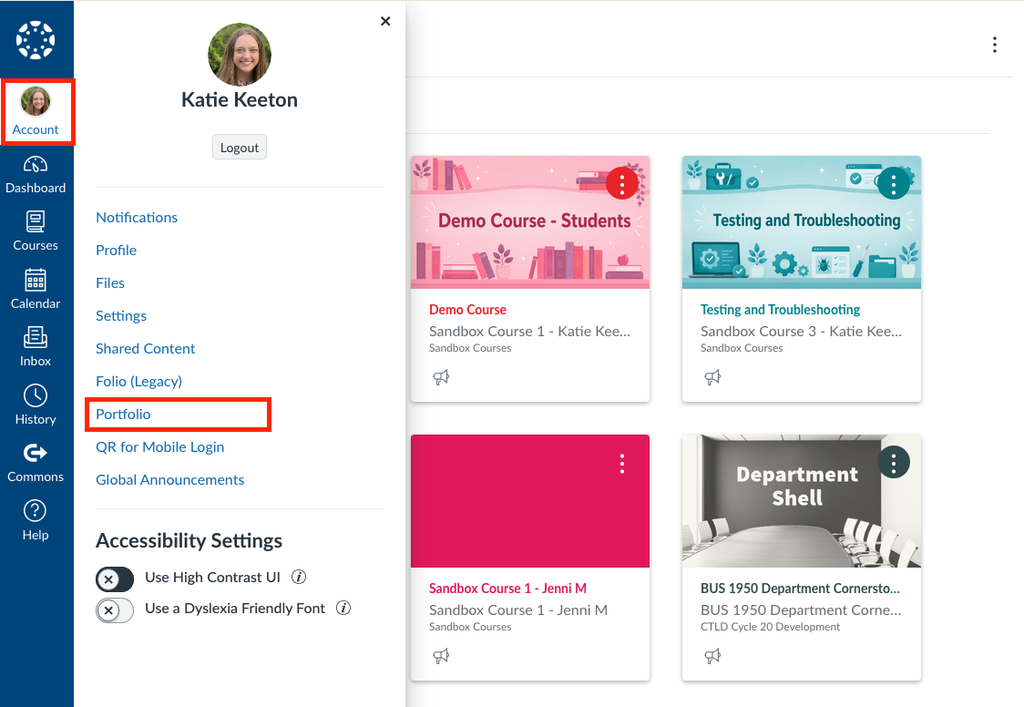
- Click + Create portfolio at the top right of the screen.
- Select Create showcase portfolio from the options that appear.
- Enter a Name for the Portfolio in the Portfolio name field at the top of the page.
- Optionally, click + Add cover image at the bottom right of the Name field to upload a Cover Image from your computer.
- Enter a Description in the Description text box. This should include information about you and what’s included in the portfolio.
- Click + Add evidence below the Description text box.
- Select an evidence option from the drop-down menu.
- Add assignment from course: Link a Canvas Assignment as evidence.
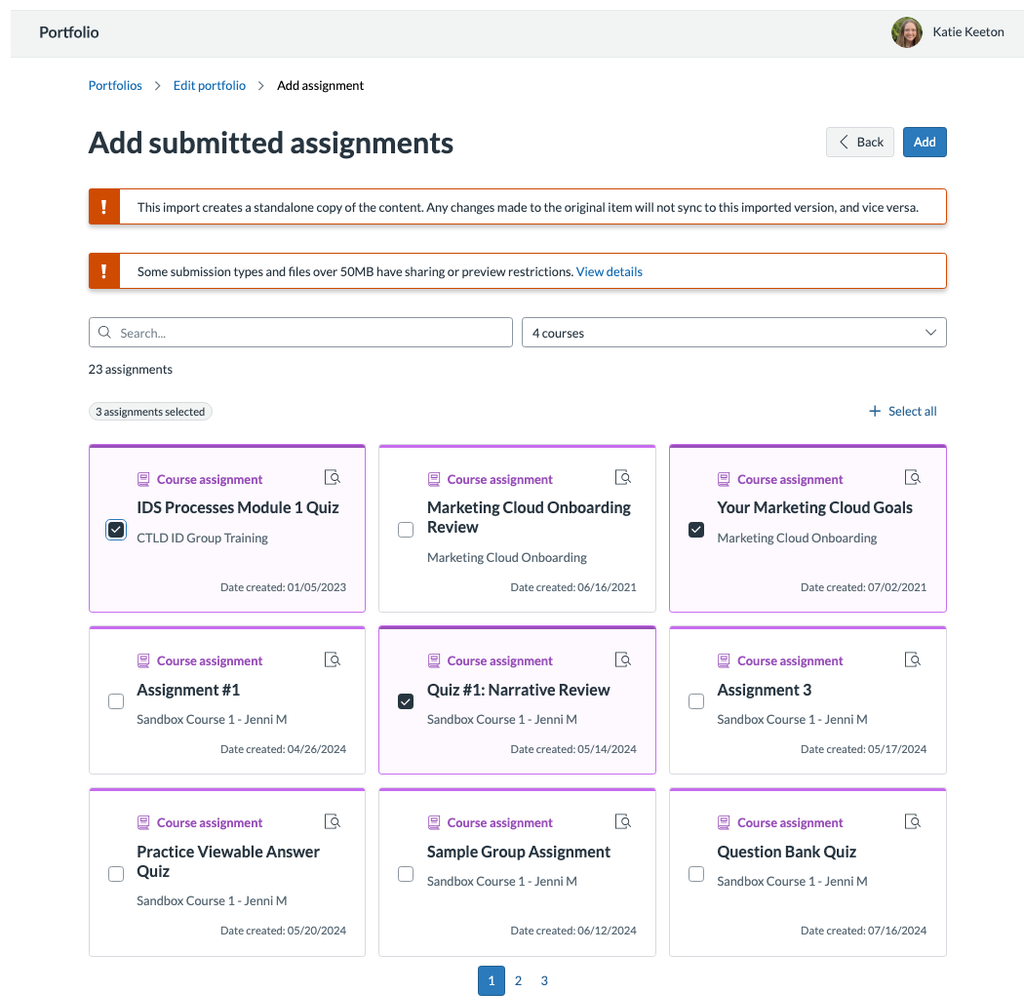
- Use the courses drop-down menu at the top right of the window to filter the assignments by course.
- Check the boxes next to each Course Assignment you would like to add as evidence to your Portfolio.
- Click Add at the top right of the page to add the selected assignments to your portfolio. Assignment cards will appear under Evidence for each added assignment.
- Follow the steps in the Add Evidence to a Portfolio section below to add evidence details, tags, reflection, and attachments.
- Add assignment from course: Link a Canvas Assignment as evidence.
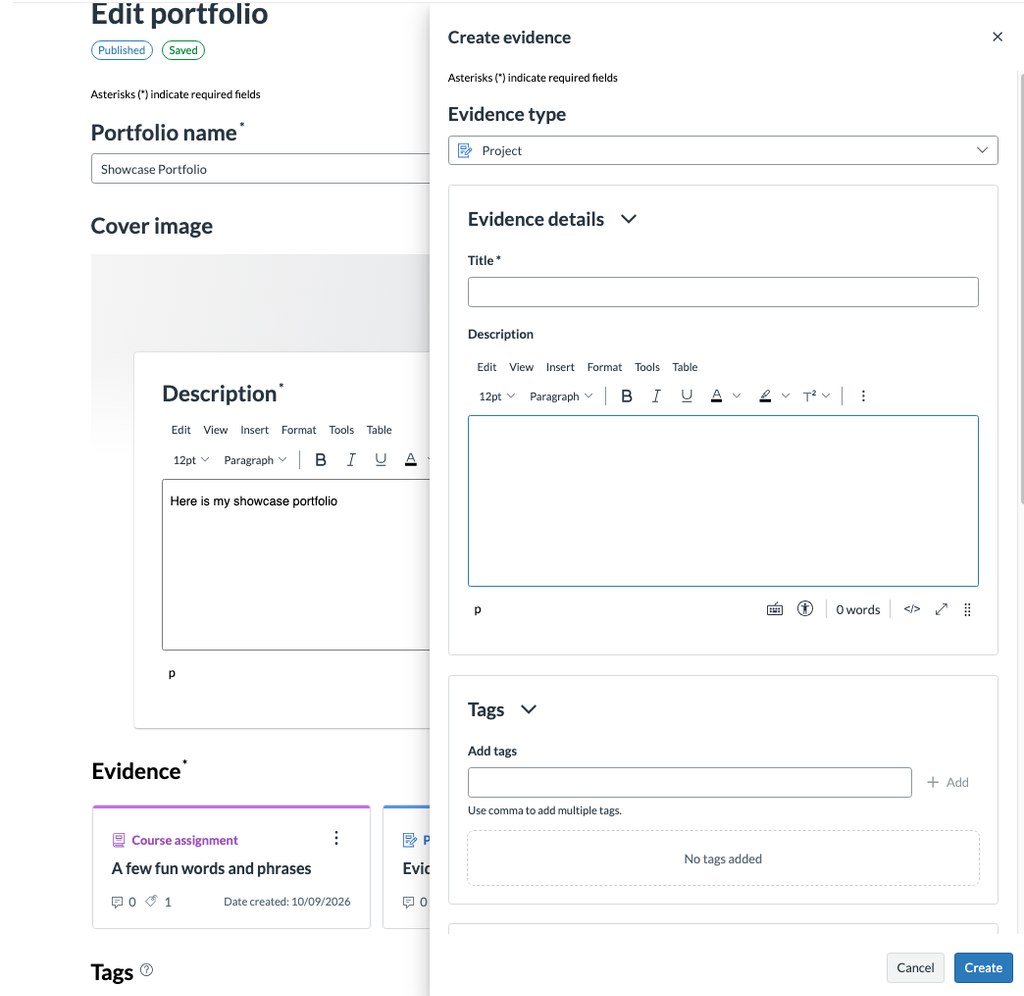
- Create new evidence: Add Evidence that is not connected to a Canvas Assignment.
- Click the drop-down menu under Evidence type.
- Select an evidence type from the options that appear.
- Note: The evidence type will display above the evidence title in the Evidence card once it is added. It does not impact how you interact with or add details to the evidence.
- Follow the steps in the Add Evidence to a Portfolio section below to continue creating your evidence.
- Click Save as Draft at the top right of the page to save your portfolio without publishing it for others to view.
- Click Publish portfolio to save your portfolio and allow for sharing.
Add Evidence to a Portfolio
For Showcase Portfolios, skip to step 6. If creating new evidence in a Showcase Portfolio, skip to step 8.
- Log in to your Canvas Account.
- Click Account (Profile Picture) from the left-hand Global Navigation Menu.
- Click Portfolio from the options that appear in the left-hand panel.
- Click Assigned from the tabs at the top left of the screen to view any Evaluation Portfolios assigned to you, or click Showcase to view your Showcase Portfolios.
- Click the Portfolio Name to open it.
- Click on an Evidence Card to view and submit work to it.
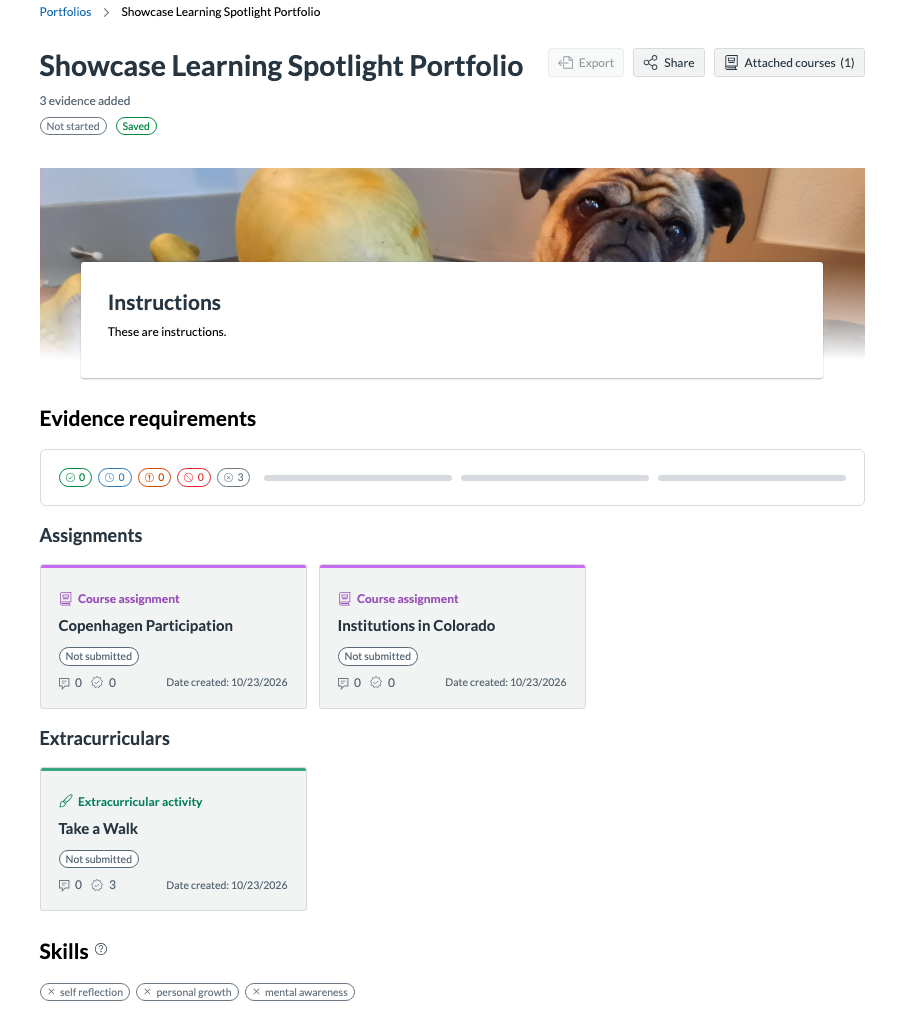
- Click Edit in the bottom right of the right-side panel.
- Enter any Evidence details in the Description box.
- You can add text, links, or images directly in the text box. Uploaded videos or documents will create a link that users can click to download the file to their computer.
- To embed a video or file directly in the text box for users to view without downloading the file, you must use an embed code.
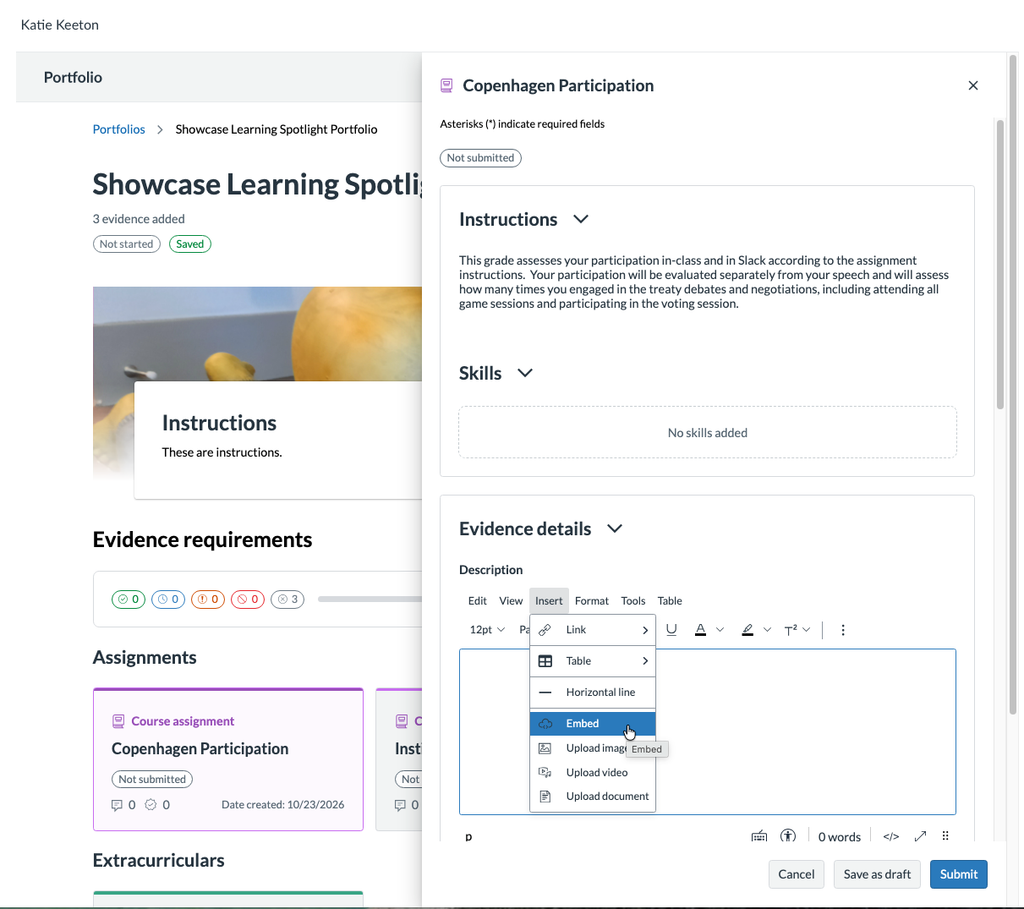
- Click Insert from the toolbar above the text box.
- Select Embed from the drop-down menu.
- Paste the Embed Code into the text field.
- Embed codes can be created for YouTube videos, Google Drive Files, and Canva designs by clicking Share and selecting Publish to Web or Embed.
- For YuJa Videos, click Media Details, then Links, then copy the Embed Code.
- Microsoft Documents and PowerPoints can be embedded as well. However, share settings will impact who can view it.
- Click Submit at the bottom right of the pop-up window.
- Enter any reflection answers in the text box under Reflection.
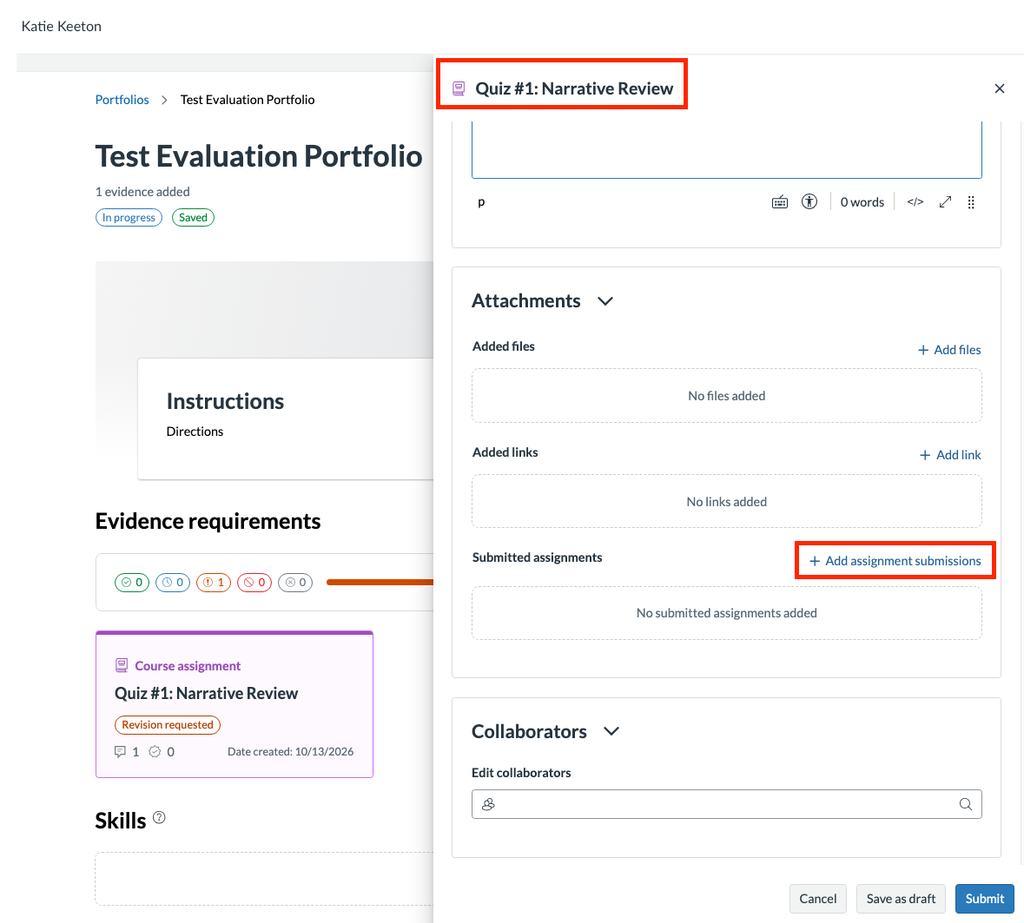
- Click + Add files or + Add link to attach files or links to the requirement. If you inserted or embedded the files or links in the Description for the requirement, you do not need to add them under Attachments as well.
- Click +Add assignment submissions to link a Canvas Assignment Submission to the requirement.
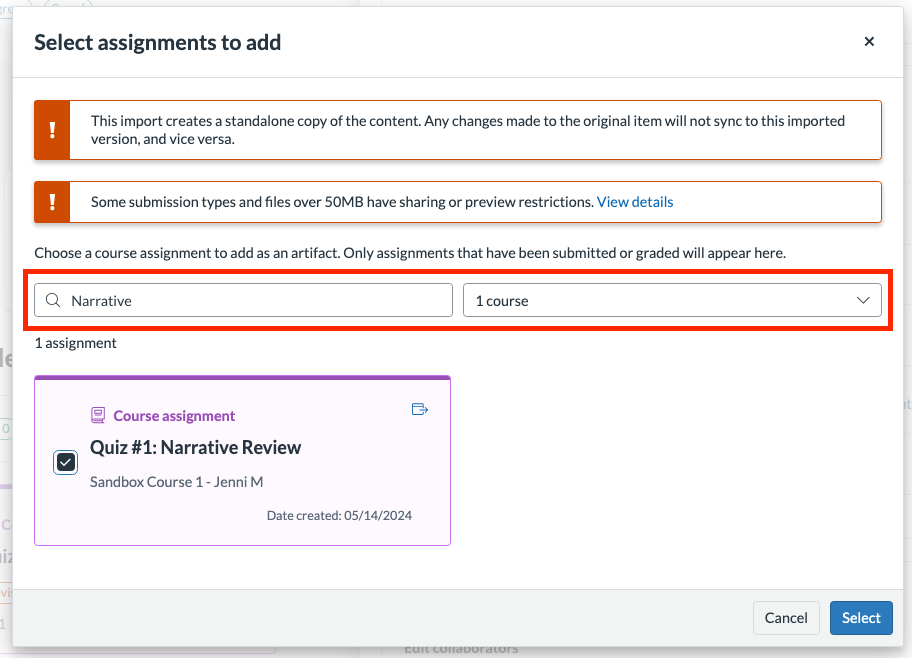
- Check the Boxes next to any Course Assignment you want to link.
- Note: If the requirement is categorized as a Course assignment, make sure the linked assignment submission matches the Course assignment name on the requirement card.
- Enter the names of any collaborators in the Edit collaborators field if this was a group assignment.
- Click Save as draft at the bottom right to save your work but not submit it.
- Click Submit at the bottom right of the panel to submit your work for review.
Have Questions?
Need additional support on this or other teaching and learning topics? Please visit us for drop-in support or try one of our self-help tutorials.
Ready to take your teaching to the next level? Opt into our Connections with CTLD newsletter!