
Last updated on February 16, 2026
Note: This is the third section of a five-section Canvas Spotlight on Grading in Canvas. Below is a list of the other sections:
- Grading in Canvas
- Identify What Can and Cannot be Graded in the Canvas Gradebook
- Understand How Students Interact with the Canvas Gradebook
- How to Set up and Customize the Canvas Gradebook
- How Assignment Groups Impact the Canvas Gradebook
When communicating with students about your grading process and what they can expect, it’s important to understand how students access their grades in Canvas. One method you can use to understand the student experience in Canvas is to click “Student View” in the top right corner of Canvas, which will display Canvas to you as if you were a student. This article will cover more information about what you will find in this preview mode, and what options students have.
It is recommended that you explore your course through the “Student View” and write your instructions from their perspective (which might differ from what you normally see). This helps both you and your students be on the same page, as well as reduce overall questions and confusion.
Best practices
- Preview your Gradebook from the “Student View”
- Keep grades up-to-date to ensure that students have an accurate picture of their performance
- Communicate clearly with your students, so they are familiar with your process and know when to expect grades to be returned to them.
Let’s walk through it together
Grades in Student View
Students can access their grades by clicking on Grades in the course navigation menu on the left. Where you, as the instructor, would have the full gradebook displayed, the students instead have a list of all the assignments and assessments with their due date, status, score, and any feedback received.
To learn how to view your Gradebook from Student View, check out our tutorial, View Your Course in Student View.
Provided below is a screenshot of the students’ view of their grades. This screenshot has the different elements numbered and correlates with the numbered list below to explain what each element is.
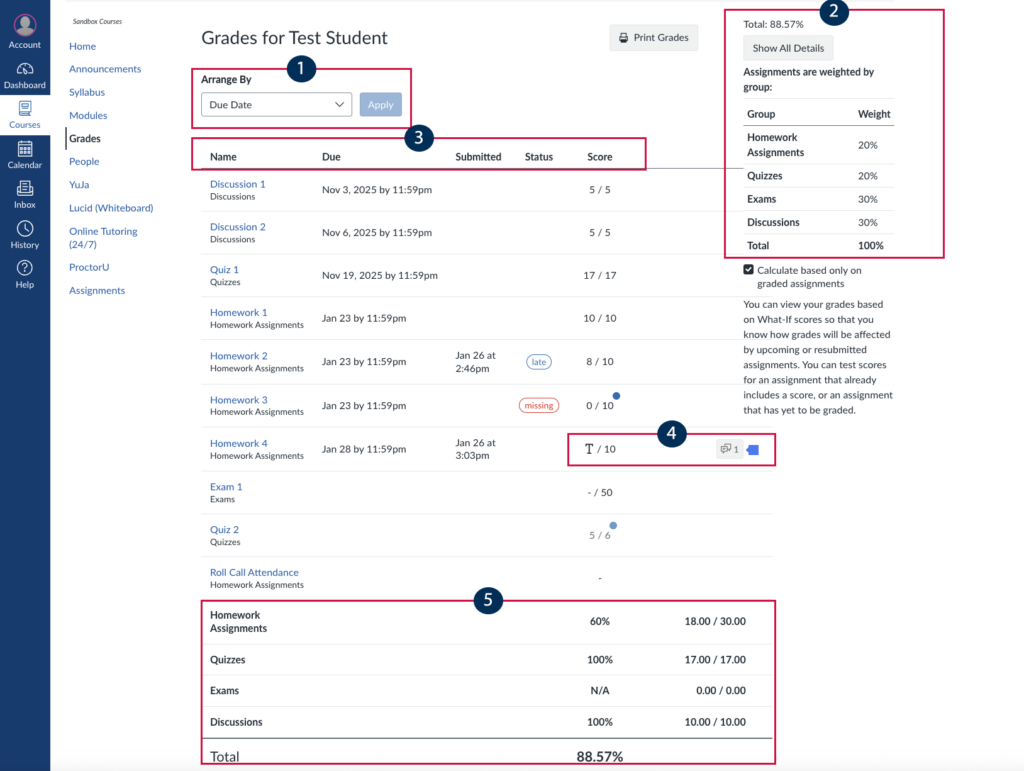
- Arrange By: Students are able to sort their assignments and grades by due date, assignment group, module, or name.
- Grading Policy Rules Breakdown: Students can view how assignment groups are weighted based on any Weighted Groupings you created.
- Note: The fourth section in this spotlight series, How Assignment Groups Impact Your Canvas Gradebook, goes into more detail about how to set up your assignment groups and create weighted groups.
- Breakdown by Assignment: Students will have a list of all the assignments with their due date, time they submitted the assignment, it’s status, and their score.
- Name: The first column shows the name of the assignment, with the name of the assignment group it belongs to underneath.
- Due Date: Both the Due Date and time it’s due with appear next to the assignment name.
- Submitted: The third column displays the date and time the student submitted the assignment.
- Status: The fourth column will show whether the assignment submission was late, or is missing. This column will be blank if the student submitted the assignment on time, or if the due date has not passed yet.
- Score: The last column shows the score the student received. The appearance of the scores will change depending on the grade settings for the assignment.
- Display Grades as Points: Students will see the points they received out of the total possible points.
- Display Grade as Percentage: Students will see the percentage they received.
- Display Grade as Complete/Incomplete: Students will see either a checkmark or an X.
- Additional Icons
- T: A T will appear in the scoring column if the student has submitted an assignment, but it hasn’t been graded/scored yet. Students can type in this section to test how different scores would impact their total grade.
- Grading Comments: A student can click on the Comment Icon to the right of an Assignment’s score to read any comments/feedback from the instructor.
- Turnitin Tag: Students can click on the tag icon to the far right of an assignment to access their Turnitin plagiarism score.
- Blue Dot: A blue dot will appear next to a score if the student has not viewed their submission grade/feedback yet.
- Assignment Group Grades and Total Percentage
- Assignment Group Grades: For each Assignment Group, students will view their overall percentage and points earned after combining all assignments that fall into that group.
- Total: Students can see what their total percentage in the course to date is (this percentage will be calculated based on any weighted grades and/or dropped scores).
- To allow students to see their total as the letter grade they will receive, check out our CTLD Spotlight, Finalize Your Course for End of Semester.