
Last updated on October 13, 2026
Your Canvas Course most likely already includes multiple videos to help increase student engagement and understanding of the course concept, and if not, view our spotlight, Incorporate YuJa into your Course, to help you get started. It’s easy to assume a video is doing its job by simply embedding it into a Canvas page. However, a video by itself gives you no immediate way to know whether students are engaging with it or how well they’re understanding the topics covered. Luckily, YuJa provides built-in tools to help you track how students are interacting with and comprehending your course videos.
YuJa Video Quizzes is one tool to help ensure students are engaging with and understanding a video. You can embed questions to appear throughout the video for students to answer. The YuJa Quiz Grade Book allows you to view student answers, manually grade short answer questions, and syncs directly to the Canvas Gradebook. View our spotlight, Video Quizzes the CTLD Way – Using YuJa to Increase Engagement, to view an example Video Quiz and steps on how to create one.
If you don’t want to turn your video into a quiz, but would like a way to track how students are engaging with a course video, YuJa also offers Video Analytics. YuJa Video Analytics provides valuable insight into students’ viewing patterns and allows you to view a breakdown of how specific students have interacted with your video.
Best Practices
When Should I Use This?
YuJa Quizzes and Grade Book
- Use Video Quizzes instead of standalone videos when you want to assess student understanding of video content, increase interactivity, provide students immediate feedback, or to encourage students to think critically about specific topics.
- Using Video Quizzes for step-by-step processes or foundational concepts can help students confirm their understanding of each step before moving on, and you can use the Grade Book to spot which concepts need review.
- Increase engagement for longer lectures by turning them into a Video Quiz where questions are placed every few minutes to keep students focused and actively engaged rather than passively watching.
- Use Playback Quizzes when you want students to receive credit based on percentage of video watched.
YuJa Video Analytics
- Use the Video Analytics Summary to identify viewing patterns, such as sections that are frequently skipped or rewatched.
- Use the Video Analytics Playback to view specific students’ engagement, such as total views and percentage of video watched.
- Use the Video Analytics Sessions to see a breakdown of each session the video was opened, including the date, time watched, and the system and browser used.
How Should I Use Quiz and Analytics Data?
- Formative Assessment or Participation Grades
- Attach YuJa Quizzes to Canvas assignments using the external tool submission type to automatically sync the YuJa Quiz Grade Book with the Canvas Gradebook.
- Use Video Quizzes as formative assessment or participation grades worth a small percentage of the students’ overall grade.
- Identify challenging concepts
- View the Grade Book for YuJa quizzes to identify commonly missed questions that may need more instruction.
- YuJa Video Analytics can show sections of the video that are commonly rewatched, indicating students may have found them confusing or hard to understand.
- Adjust instruction for your course
- Use question answers in YuJa Video Quizzes to help determine which concepts may need additional explanation or practice.
- If Video Analytics shows a majority of students not finishing the video, it may indicate the video is too long. Consider breaking the video up into two smaller videos.
When Should I Not Use This?
YuJa Quizzes
- Avoid using YuJa Quizzes for high-stakes assessments or complex exams where student accommodations or proctoring are required.
- Instead, focus on using YuJa Quizzes for formative checks where students practice a skill or concept in preparation for summative exams.
- Don’t use YuJa Quizzes for activities or assessments that require detailed or personalized feedback.
YuJa Analytics
- Do not assign grades based on Video Analytics.
- Instead, use Playback Quizzes for a more accurate scoring of percentage of video watched.
- Do not assume a student did or did not understand a video’s content based on percentage of the video watched.
- Avoid using playback speed to gauge student engagement with a video, as it is often inaccurate.
- If a student watched a video at regular speed all the way through, but then rewatched sections, it can calculate their average playback speed as much quicker than it was.
Let’s walk through it together
[Length 12:39, CC Available]
Use the YuJa Quiz Grade Book for YuJa Quizzes
Create a YuJa Quiz Assignment in Canvas
You will need to create a YuJa Quiz from an existing video in your YuJa Account before adding it to an assignment. Once you have your Video Quiz, you can attach it to a Canvas Assignment. You must attach the video using the External Tool submission type in order to have the YuJa Grade Book sync with the Canvas Gradebook. Simply embedding the video in the Rich Content Editor will not sync the gradebooks.
Follow the steps in our spotlight, Video Quizzes the CTLD Way – Using YuJa to Increase Engagement, for guidance on how to create a YuJa Video Quiz and attach it to a Canvas Assignment.
View and Manage the YuJa Quiz Grade Book
Grades for YuJa Video Quizzes that don’t require manual grading and for Playback Quizzes should sync automatically with your Canvas Gradebook as long as you use the external tool submission type. However, Playback Quizzes may take a few hours to sync after students view the video.
- Open msudenver.yuja.com in your web browser.
- Click Sign In in the top right corner of the screen.
- Sign in using your MSU Denver Credentials.
- Click the Grid icon (more options menu) at the top right of the page.
- Select Usage & Analytics from the drop-down menu.
- Click the Grade Book icon (A+) from the left-side navigation menu.
- Click the Course drop-down menu.
- Select the Canvas Course your quiz is posted in.
- Note: Select Non-course grades for quizzes that are not connected to an assignment in a Canvas Course, or select Shared Quizzes to view the grade book for a YuJa quiz that was shared by another user.
- Click the Quiz drop-down menu.
- Select the YuJa Quiz you want to view the grade book for.
- Click Get Result.
View and Grade Student Answers
- Select Grade Book from the tabs at the top of the page.
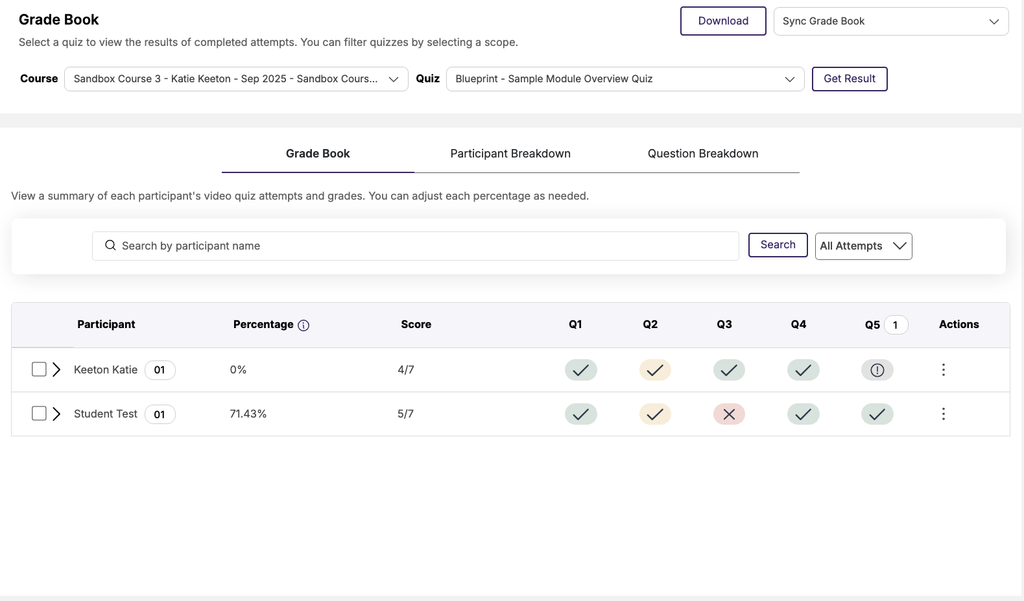
- You will see a list of students who have taken the YuJa quiz with their scores and a breakdown for each question.
- Click on the arrow to the left of a student name to view their attempts.
- Click on an icon under a question in an attempt row to view the student’s answers or grade open response questions. A pop-up will appear with the question and the student’s answer.
- Exclamation Mark: The question needs to be graded manually.
- Select an option under the Student Answer to grade their response.
- Red X: Student answered the question incorrectly.
- Green Checkmark: Student answered the question correctly.
- Yellow Partial Circle: Student was partially correct and earned partial credit.
- Exclamation Mark: The question needs to be graded manually.
- Use the Student and/or Question drop-down menus at the top of the pop-up window to switch between questions or students.
- Click Save to save any manual grades and close the pop-up window.
- Click the Participant Breakdown tab at the top of the page to view a chart or table displaying how many questions each student got correct or incorrect.
- Click the Question Breakdown tab at the top of the page to view how many students answered each question correctly or incorrectly.
- Click the Question drop-down menu to select a question to view the breakdown of.
Manually Sync the YuJa Grade Book with Canvas
If your quiz required manual grading, you changed any student scores, or you notice the Canvas Gradebook isn’t syncing with YuJa, you can manually sync the Grade Book.
- Click Grade Book from the tabs at the top of the page.
- Click the Sync Grade Book drop-down menu at the top right of the page.
- Select a syncoption from the drop-down menu.
- On-Demand LMS Student Gradebook Sync: Sync the gradebook for only the selected students.
- Check the box to the left of a student name to select them.
- On-Demand LMS Gradebook Sync: Re-sync the entire gradebook to match the YuJa grade book.
- Note: Any grades you manually changed in the Canvas Gradebook will be overridden by the scores in the YuJa Grade Book.
- On-Demand LMS Student Gradebook Sync: Sync the gradebook for only the selected students.
- Click OK at the bottom right of the pop-up window.
YuJa Video Analytics
- Open msudenver.yuja.com in your web browser.
- Click Sign In in the top right corner of the screen.
- Sign in using your MSU Denver Credentials.
- Click Manage Media at the top of the page.
- Locate the video you want to view the Video Analytics for.
- Hover over the video.
- Select More… from the options that appear.
- ClickAnalytics from the left-side menu options in the Media Details pop-up window.
- A summary and chart of the viewing behavior for the video will appear.
- Click More at the bottom right, under the chart, to view more detailed video analytics.
Summary
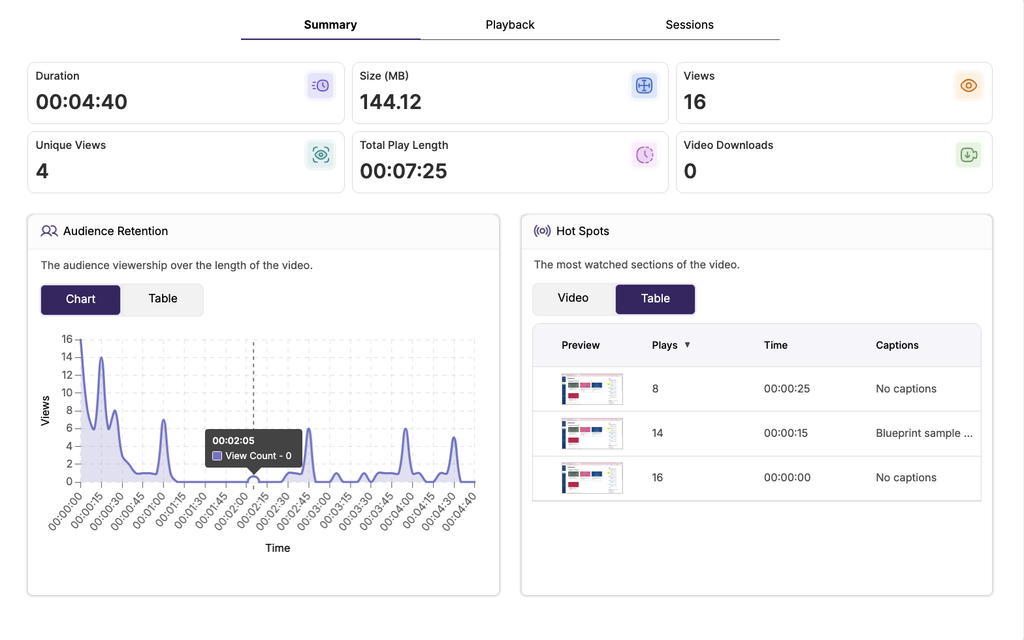
The Summary page will show an overview of the video viewing behavior, including average duration played, total views and unique views, and viewership trends over the length of the video.
- Click Summary from the tabs at the top of the Video Content Report page.
- Hover over the Audience Retention Chart to view the total view count for each timestamp.
- Click Table above the Audience Retention chart to view the data in a table format instead of a chart.
- Play the video under Hot Spots. Blue lines will appear along the video progress bar at the bottom where the most watched sections of the video are.
- Click Table above the video to view the most watched sections as a table instead.
Playback
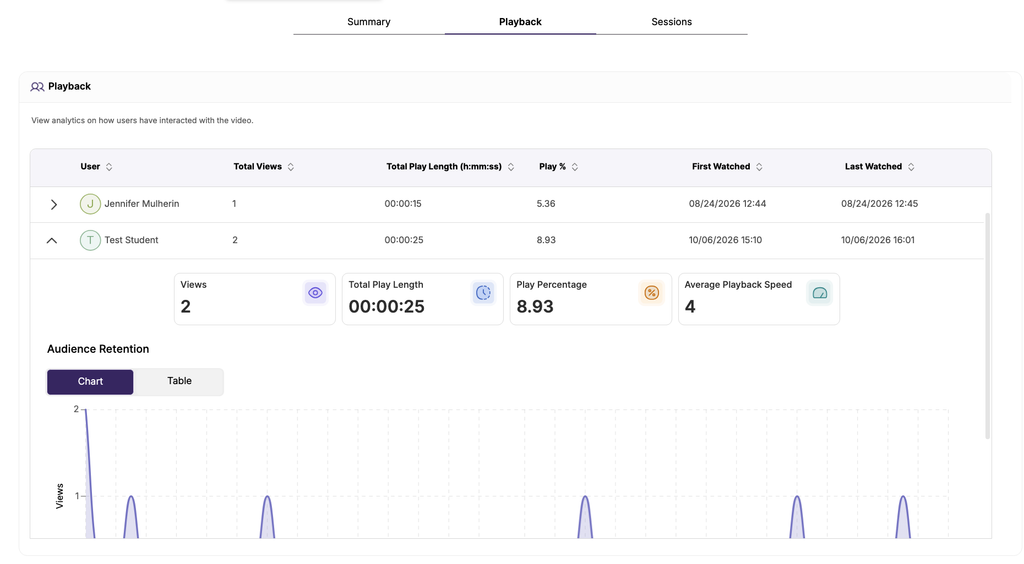
The Playback page will display viewership behavior by user/student. If the video is posted in a course, the students’ names will appear in a list with their analytics on how they interacted with the video.
Note: If users are not logged into their MSU account when viewing the video, they will be logged under one single ‘Anonymous’ user. If the video is posted to your Canvas Course, this should not be an issue.
- ClickPlayback from the tabs along the top of the Video Content Report Page.
- A table will appear with users (people who have played the video) and their viewing behavior.
- Click the arrows next to a category on the table to sort the data by that category.
- Click on the arrow to the left of a user’s name to open their analytics in more detail.
- Views: Shows how many times the user has played the video for any amount of time.
- Total Play Length: Shows the total length of the video the user has watched.
- Play Percentage: Shows the percentage of the video the user has watched.
- Average Playback Speed: Shows the average speed the viewer has watched the video at.
- Note: The playback speed appears faster if the student returns to the video and skips ahead to a section in the video. It is not recommended to take the average playback speed into account when viewing a student’s video analytics.
- Hover over the Audience Retention chart to see how many times the user viewed each timestamp.
- Click Table above the chart to display the views and average playback speed of each timestamp in a table format.
Sessions
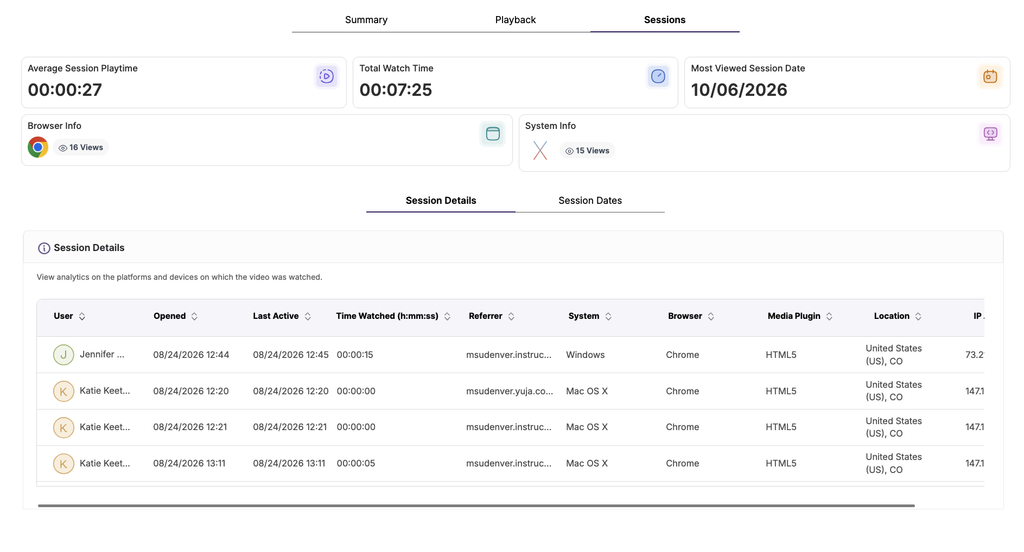
The Sessions page will break down viewer analytics by session, or instance of a user opening and interacting with the video, rather than user, so you can see the exact date and time a user opened the video.
- ClickSessions from the tabs at the top of the Video Content Report page.
- A table of each session will appear with the user, the date and time of the session, watch time, and web analytics.
- Note: A student may appear on the list more than once if they watched the video in more than one session.
- Click the arrows next to a category on the table to sort the data by that category.
- Click Session Dates above the table to view analytics for the total number of views the video received on a specific date.
Have Questions?
Need additional support on this or other teaching and learning topics? Please visit us for drop-in support or try one of our self-help tutorials.
Ready to take your teaching to the next level? Opt into our Connections with CTLD newsletter!