
Last updated on September 30, 2026
Including videos in your course is a great way to increase student engagement and instructor presence. The Comment feature in YuJa videos can help expand on this by adding an interactive component to your regular course videos, allowing students to pose questions, comment on specific timestamps, and reply to each other directly in the video player. You could also use these comments to pose thinking questions to the students to pop-up at specific points in the video or highlight important concepts.
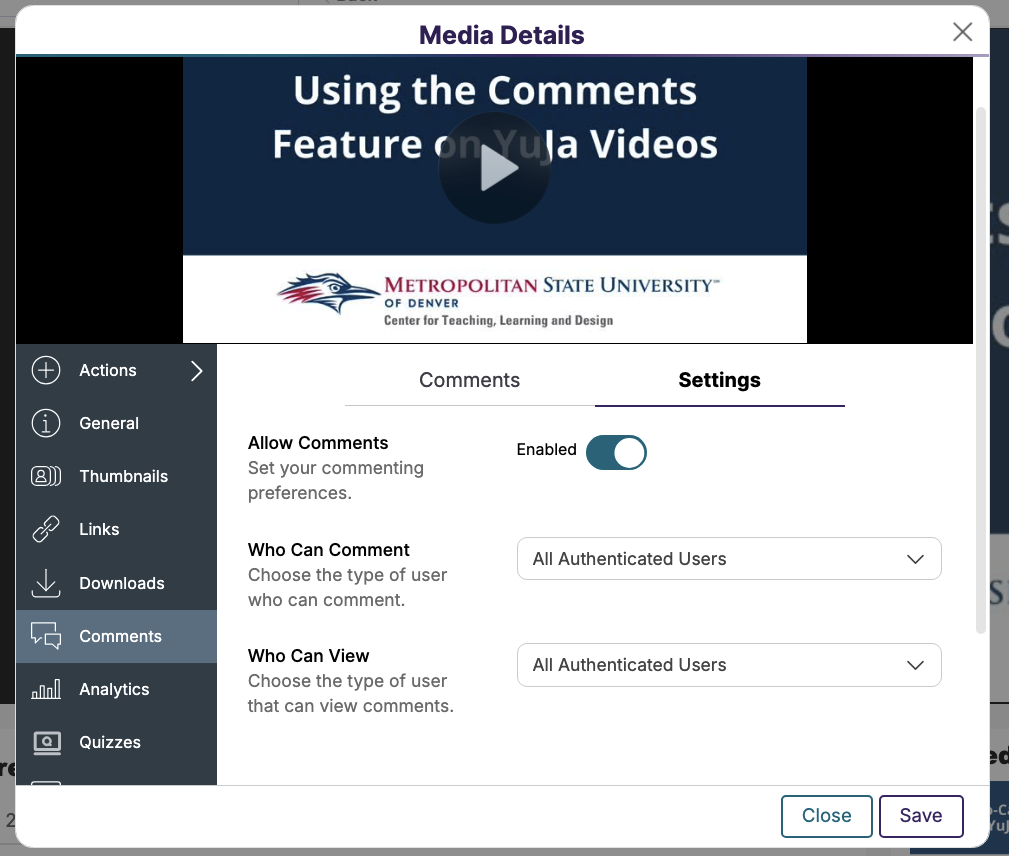
YuJa allows you to change the comment settings on a video to just the video owner, everyone, or anyone with an MSU login. When someone adds a comment to a video in YuJa, it will appear as a pop-up directly on the video player at the timestamp the comment was made. You can also view and reply to comments from the sidebar panel when viewing the video full screen.
While comments can be a helpful tool to add interactivity to a course, they are not made to be imported into the gradebook as an assignment. For a video annotation tool that is meant to be used as a graded assignment, view our tutorial, Set Up a GoReact Assignment in Canvas.
Directions
[Length 5:39, CC Available]
Adjust Comment Settings for YuJa Video
- Open https://msudenver.yuja.com in your web browser.
- Click Sign In at the top right of the screen.
- Log in using your MSU Denver Credentials.
- Alternatively, click YuJa from the left-hand navigation menu in your Canvas course.
- ClickMy Media from the left-side menu.
- Select a folder if needed.
- Hover over the Video you want to adjust comment settings for.
- Click More from the options that appear.
- Click Comments from the left-hand menu below the video player.
- Click Settings from the options at the top of the Comments panel.
- Click the Allow Comments toggle to enable or disable commenting.
- Click the drop-down menu next to Who Can Comment.
- Select which users can comment on the video.
- Content Owner Only – Only the user who created the video can comment.
- Everyone – Any user who has the video link or views the video can comment.
- All Authenticated Users – Any user who is logged in using MSU credentials, such as students and faculty, can comment.
- Select this option if you would like your students to be able to comment on a video posted in your Canvas Course.
- Content Owner & IT Manager Only – Only the user who created the video and the IT admin account can comment.
- Click the drop-down menu next to Who Can View.
- Select which users can view the comments made on the video.
- Note: The options are the same as Who Can Comment.
- Click Save in the bottom right corner.
Comment on YuJa Video
The steps to comment on videos are the same for both instructors and students.
- Open the YuJa Video you wish to make comments on.
- Note: You can open the video through YuJa or through a Canvas page the video is embedded on.
- Play the video.
- Pause the video at the point where you want the comment to appear.
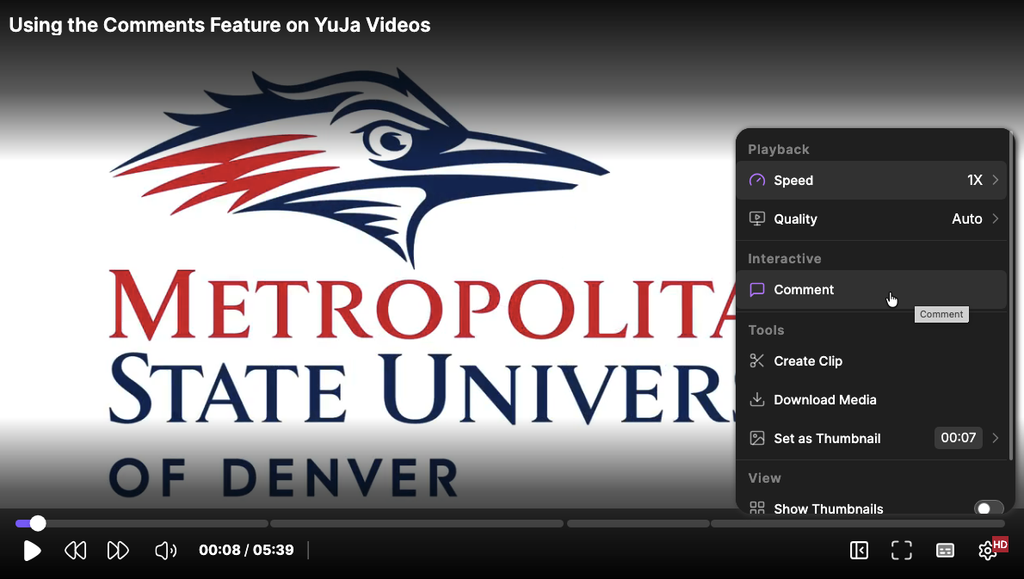
- Click the Settings icon at the far right of the video player.
- Select Comment from the list of options that appear.
- Type your comment in the text box that appears.
- Select an option for who can view the comment (All Viewers or Video Owner).
- ClickPost at the bottom right of the comment pop-up.
- Note: A dot will appear on the video progress bar at the timestamp your comment was made. Hover over the dot to view the comment.
View and Manage Comments
View and Reply to Comments through Video Playback
- Play the video.
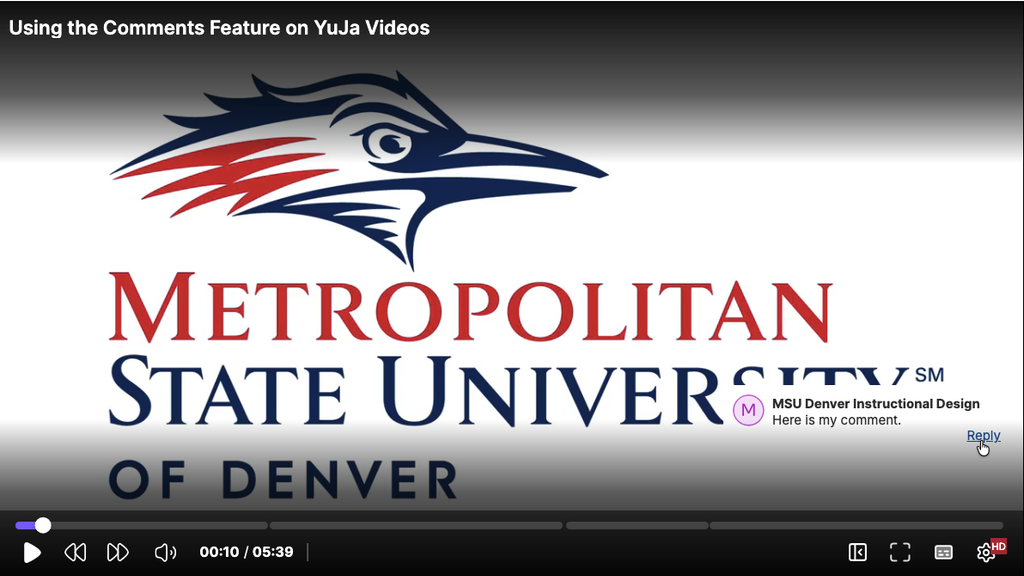
- Comments will appear as a pop-up in the bottom right corner of the video, or you can hover over a dot on the video progress bar to view it.
- Click Reply to the right of the comment in the pop-up to reply to a comment.
- Type your reply in the text box that appears.
- Click Post at the right of the pop-up window to post your reply.
- Click Close at the bottom right of the pop-up.
- Click the Play icon to resume the video.
- Click Show # reply under a comment to view any replies made to a comment.
View and Manage All Comments at Once
- Click the Sidebar Icon at the bottom of the video player.
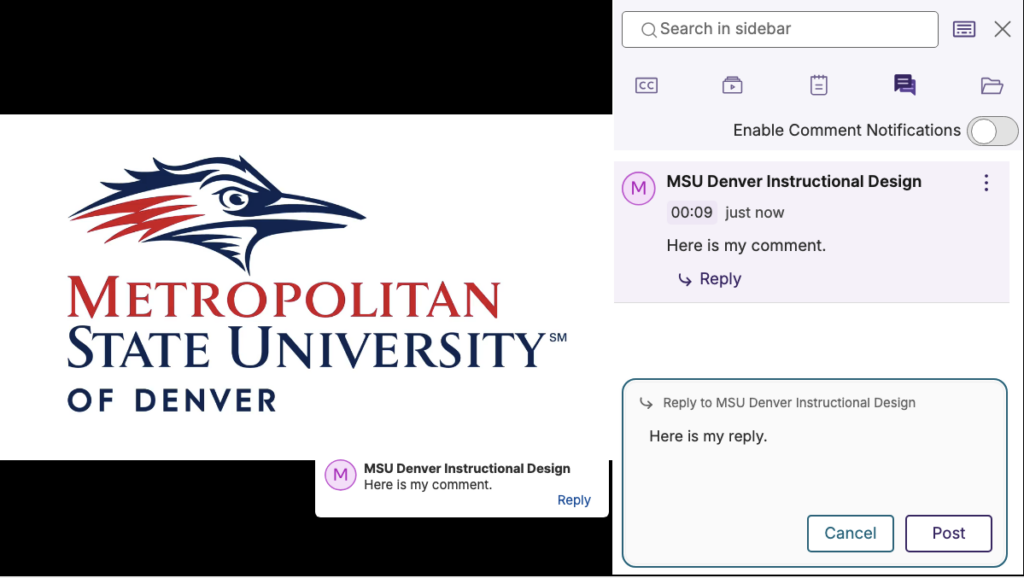
- Click the CommentIcon (Two dialogue boxes) from the icons at the top of the right-side panel that appears.
- A list of comments will appear with the name of the user, the timestamp the comment was made, and the date the comment was made.
- Optionally, click the toggle next to Enable Comment Notifications at the top right to receive an email any time a new comment is made.
- Click Reply at the bottom left of a comment to reply to the comment.
- Click # Reply at the bottom right of a comment to view any replies to the comment.
- Optionally, click the three dots to the right of a comment, and select Delete to delete a comment for everyone.
- Click the X at the top right corner to close the right-side panel.
Have Questions?
Need additional support on this or other teaching and learning topics? Please visit us for drop-in support or try one of our self-help tutorials.
Ready to take your teaching to the next level? Opt into our Connections with CTLD newsletter!