
Last updated on September 8, 2026
Occasionally, when adding an extension for a particular student, you’ll notice that the grades for all students have disappeared.
This usually happens when the “Assign to” field for “Everyone” is accidentally replaced. In order to see the grades again, you’ll need to restore this setting in the affected assignments.
Directions
- Login to your Canvas Account.
- Select the course you’d like to work in.
- Navigate to the assignment where you added the extension.
- Click on the assignment name.
- Click the Edit button on the top right.
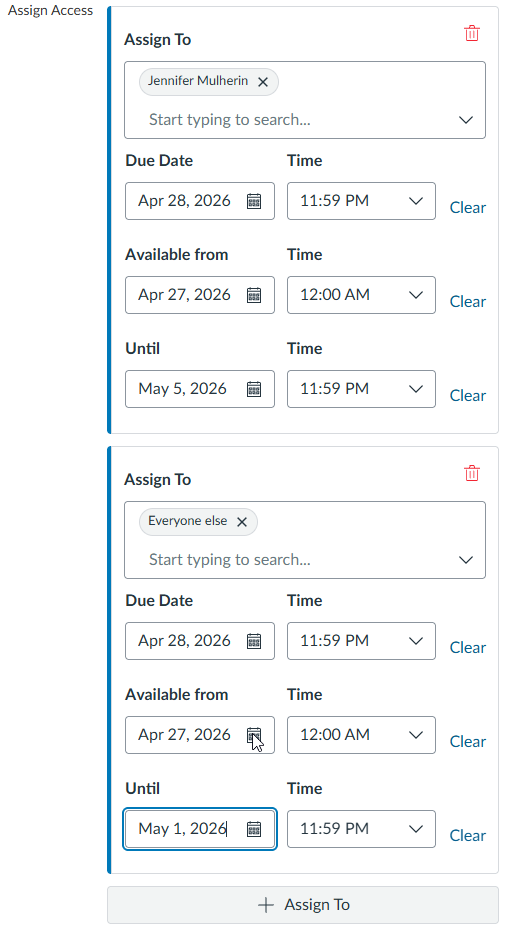
- Scroll down to the Assign Access section.
- Note who is in the first Assign To section. It’s likely the student you assigned an extension to.
- Click on the + Assign To button.
- Select Everyone else from the drop-down menu.
- Assign Due Date and Time, Available from date and time, and Until date and time as necessary.
- Click Save.
- Check your gradebook for that particular assignment, and the grades should be visible.
Have Questions?
Need additional support on this or other teaching and learning topics? Please visit us for drop-in support or try one of our self-help tutorials.
Ready to take your teaching to the next level? Opt-in to our Connections with CTLD newsletter!