
Last updated on June 18, 2026
When attaching a rubric to an assignment or discussion, Canvas will not automatically enable the setting to use the rubric for grading. If this setting is not enabled, you will still be able to score the students using the rubric, and students will still see your evaluation, but the grade will not auto-populate with the rubric score. To allow for grades to automatically sync with the rubric, you must select Use this rubric for assignment grading within the rubric settings on the assignment page.
Note: This setting can only be enabled from the Assignment or Discussion where the rubric is attached. It must be turned on separately for each Assignment or Discussion and cannot be enabled from the Rubrics page.
For more guidance on how to create and attach rubrics to assignments, see our tutorials, Create a Rubric in Canvas, Attach a Rubric to an Assignment, and Attach a Rubric to a Discussion.
Directions
Enable Rubric-Based Grading in Assignments
- Log in to your Canvas Account.
- Select the Course you’d like to work in.
- Click Modules from the left-hand course navigation menu.
- Locate the Assignment the rubric is attached to.
- Click the Assignment Name.
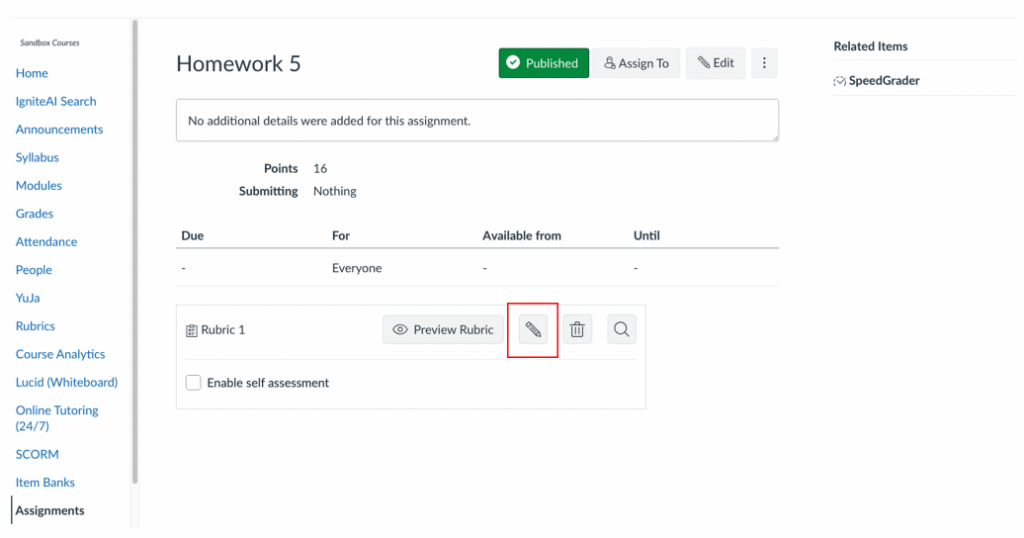
- Click the pencil icon to the right of the Rubric Name at the bottom of the page.
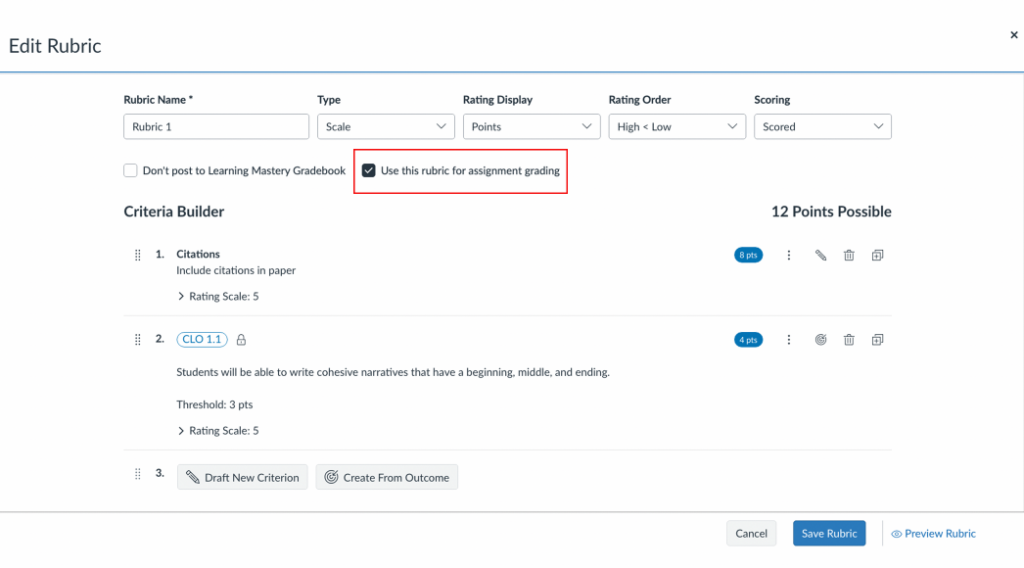
- Check the box next to Use this rubric for assignment grading.
- Click Save Rubric at the bottom right.
- Note: If the assignment points are different than the total rubric points, a pop-up will appear asking if you would like to change the points possible or leave different. Click Change for the grades to sync correctly.
- Click SpeedGrader at the top right of the assignment page.
- Locate any student submissions you have already evaluated using the arrows at the top right.
- Resubmit the Assessment.
- Note: You may need to unclick and reclick one of the criteria ratings for the Submit Assessment button to become available.
- The Grades should now auto-populate with the rubric.
Enable Rubric-Based Grading in Discussions
Note: Rubrics cannot autopopulate grades for discussions with Graded Checkpoints. You can still score the rubric in SpeedGrader, but you will have to input the grades for each checkpoint manually.
- Log in to your Canvas Account.
- Select the Course you’d like to work in.
- Click Modules from the left-hand course navigation menu.
- Locate the Discussion the rubric is attached to.
- Click the Discussion Name.
- Click the three dots (more options menu) to the right of the discussion title.
- Click Show Rubric from the drop-down menu.
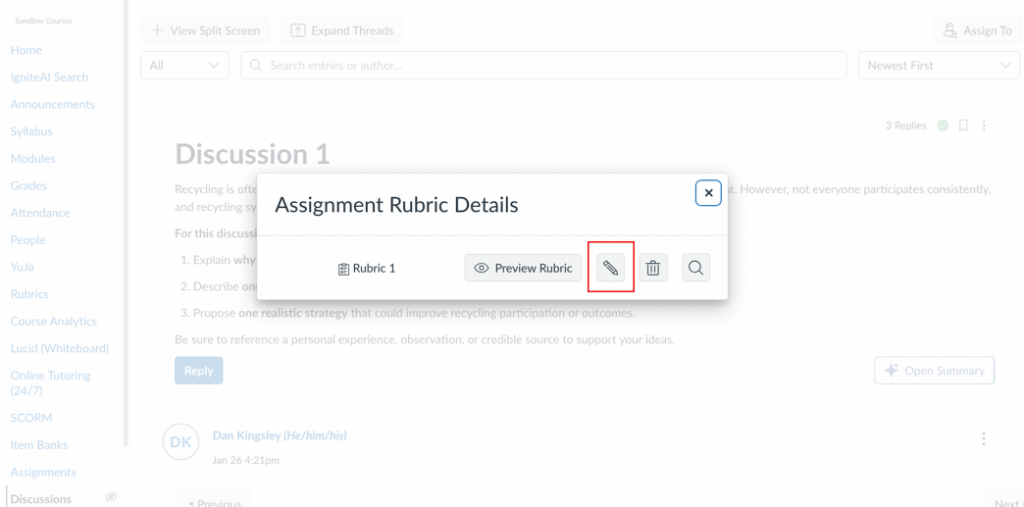
- Click the pencil icon to the right of the Rubric Name.
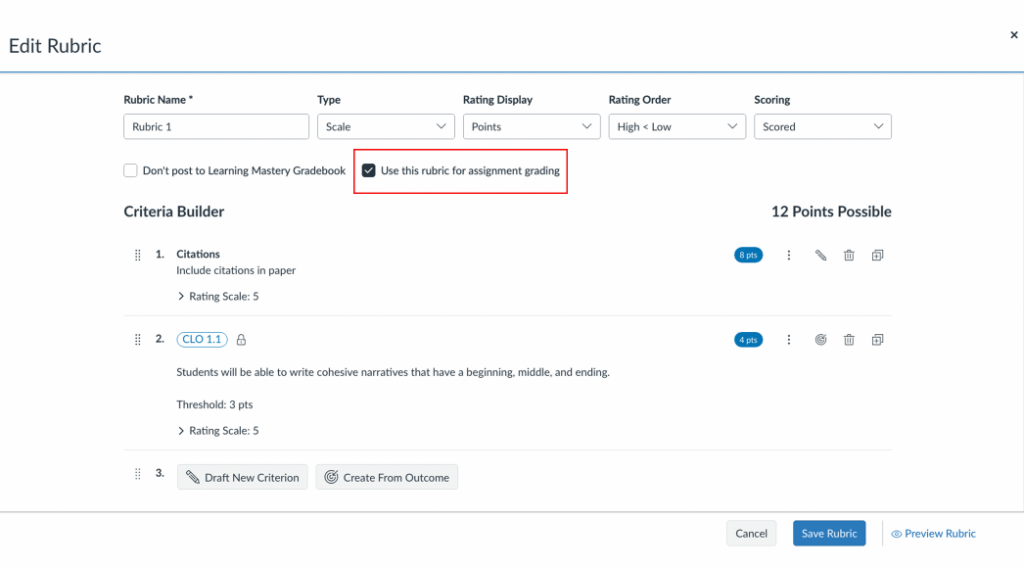
- Check the box next to Use this rubric for assignment grading.
- Click Save Rubric at the bottom right.
- Note: If the discussion points are different than the total rubric points, a pop-up will appear asking if you would like to change the points possible or leave different. Click Change for the grades to sync correctly.
- Click the X at the top right of the pop-up to exit out of the Rubric Details.
- Click the three dots to the right of the Discussion Name again.
- Click Open in SpeedGrader from the drop-down menu..
- Locate any student submissions you have already evaluated using the arrows at the top right.
- Resubmit the Assessment.
- Note: You may need to unclick and reclick one of the criteria ratings for the Submit Assessment button to become available.
- The Grades should now auto-populate with the rubric.
Have Questions?
Need additional support on this or other teaching and learning topics? Please visit us for drop-in support (10am-3pm, M-F) or try one of our self-help tutorials.
Ready to take your teaching to the next level? Opt into our Connections with CTLD newsletter!