
Last updated on September 8, 2026
Finding specific content in a Canvas course can sometimes be time-consuming, especially as courses grow and include more materials. To help streamline this process, Canvas has introduced IgniteAI Search for Courses, an AI-powered search tool designed to make it easier to locate relevant course content.
IgniteAI Search is available in Canvas and works within content pages, announcements, discussion prompts, and assignment descriptions. It does not search files (like PDFs or Word documents), external links, within videos, or external tools. IgniteAI Search only searches within the course where it’s enabled. It does not search across all your courses.
IgniteAI Search can be helpful for students preparing for assessments and instructors updating or organizing their courses. The following tutorial will walk you through enabling and using the IgniteAI Search feature in your Canvas course.
Directions
[Length 3:33, CC Available]
Enable IgniteAI Search in Your Course
- Log in to your Canvas Account.
- Select the Course you’d like to work in.
- Click Settings at the bottom of the left-hand course navigation menu.
- Click the Feature Options tab at the top of the Settings page (second from the right).
- Scroll down the list of feature options until you find IgniteAI Search for Courses.
- Click the red x with a circle around it to the right of the name.
- Click Enabled to turn it on. The toggle will display a green checkmark once enabled.
- Note: IgniteAI Search must be enabled this way in each course where you would like to use this feature.
- Click Home from the left-hand course navigation menu to refresh your page for IgniteAI Search to appear within that left-hand list.
Note: IgniteAI Search is a Feature Preview. By enabling it, you and your students will have the ability to help Canvas refine and improve the tool.
Use IgniteAI Search for Courses in Canvas
- Click IgniteAI Search in the course navigation menu on the left.
- Note: The first time you use this tool, it will need to index your course. It may take a few minutes for results to appear. You may leave the page and come back while it works in the background.
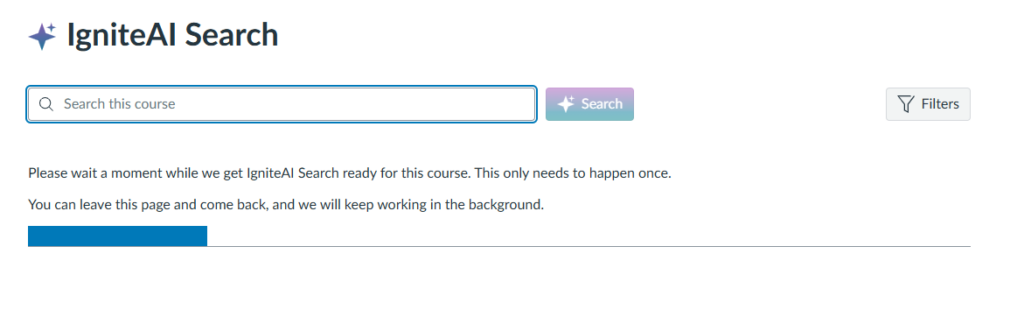
- Type your keyword in the Search field at the top of the page.
- Click the Search button or press the Enter/Return key on your keyboard to start the search.
- Review the search results displayed on the screen.
- Use the Filter button to the right of the Search field to narrow down your search results.
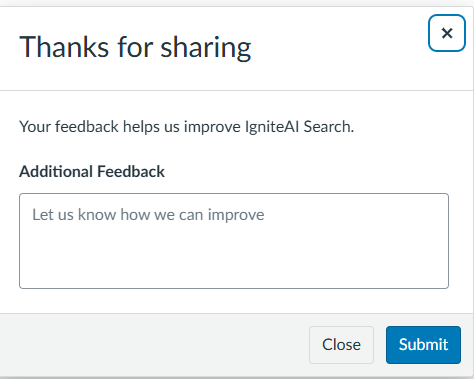
- Click the thumbs-up or thumbs-down icons on the top right side of the page to help improve IgniteAI Search’s accuracy.
- If you click the thumbs-down button, a pop-up window displays where you can add additional feedback.
Have Questions?
Need additional support on this or other teaching and learning topics? Please visit us for drop-in support or try one of our other self-help tutorials.
Ready to take your teaching to the next level? Opt into our Connections with CTLD newsletter!