
Last updated on September 8, 2026
Note: This is the first section of a five-section Canvas Spotlight on Grading in Canvas. Below is a list of the other sections:
- Grading in Canvas
- Identify What Can and Cannot be Graded in the Canvas Gradebook
- Understand How Students Interact with the Canvas Gradebook
- How to Set up and Customize the Canvas Gradebook
- How Assignment Groups Impact the Canvas Gradebook
The Canvas Gradebook is a powerful and helpful tool for both in-person and online courses. Instructors can view, score, and provide feedback for student submissions directly through the Gradebook.
This Spotlight Series on Grading in Canvas will cover all the basics of setting up, using, and customizing your Gradebook, as well as provide insight on how to optimize your gradebook to best fit your course’s needs.
As the first Spotlight in the series, we will go over the benefits and best practices to follow when grading in Canvas, as well as how to use the Gradebook to post students’ scores and provide feedback.
Best Practices
Benefits of Using Canvas Gradebook
The Canvas Gradebook is a convenient one-stop-shop for all grade and assessment feedback information. The Gradebook is a useful tool because it:
- Adheres to FERPA requirements.
- Is easy for students to use and access.
- Automatically calculates grades taking into account any custom grading schemes, weighted grades, and dropped scores.
- Can be extensively customized.
- Provides full analytics.
How Should I Use the Gradebook
When grading, it is important to keep these best practices in mind to make the process more transparent, consistent, and supportive of student learning.
- Keep grades up-to-date to ensure that students have an accurate picture of their performance.
- Communicate your Grading Policies, including any weighted grades, dropped scores, late/missing policies, and grading schemes, to your students clearly and early on.
- Share with your students when they can expect their grades to be available.
- Keep your Gradebook organized and easy to read by using Assignment Groups and View Settings.
Providing Feedback to Students
Feedback can be an incredibly useful tool in increasing student engagement, motivation, and academic performance. Here are some best practices to help make feedback more meaningful for the students.
- Provide feedback in a timely manner before students have moved on.
- Keep feedback specific, actionable, and tied directly to the assignment criteria and learning objectives.
- Focus feedback on how the student can improve rather than only justifying a grade.
Let’s walk through it together
[Length 6:45, CC Available]
Add Assignments to the Gradebook
Anytime you create an assignment, quiz, or discussion, it will automatically be put into the gradebook in its own column and be assigned the number of points you set in the assignment settings.
You can also set any of these assignments to not appear in your Canvas Gradebook by changing their Grade Display settings to Not Graded.
Note: For Discussions, ensure Graded is selected within the Discussion settings if you want the discussion to appear in the Gradebook. If it is not marked as Graded, it will not show up in the Gradebook and will not be worth any points.
Check out these tutorials for more information on how to edit Assignment, Quiz, and Discussion settings, so they appear how you want them to in the Gradebook:
- Edit Existing Assignments
- Create and Edit “New” Quizzes
- Create and Edit Classic Quizzes
- Get Started with New Discussions in Canvas
Scoring and Posting Grades and Feedback
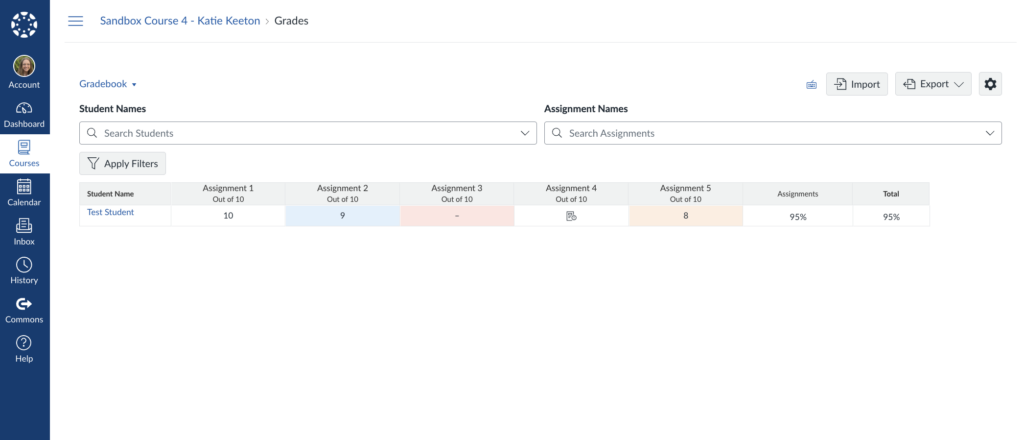
When a student submits an assignment, it will be automatically added to the Gradebook. For quizzes that are automatically scored, the student’s score will appear next to their name in that Quizzes column.
Student submissions appear differently based on the status of that submission.
- A Paper Icon indicated that the student submitted the assignment and is ready for scoring.
- Missing Submissions will appear red.
- Submissions will only be counted as missing once the due date for the assignment has passed.
- Late Submissions will appear blue.
- Dropped Scores will appear orange.
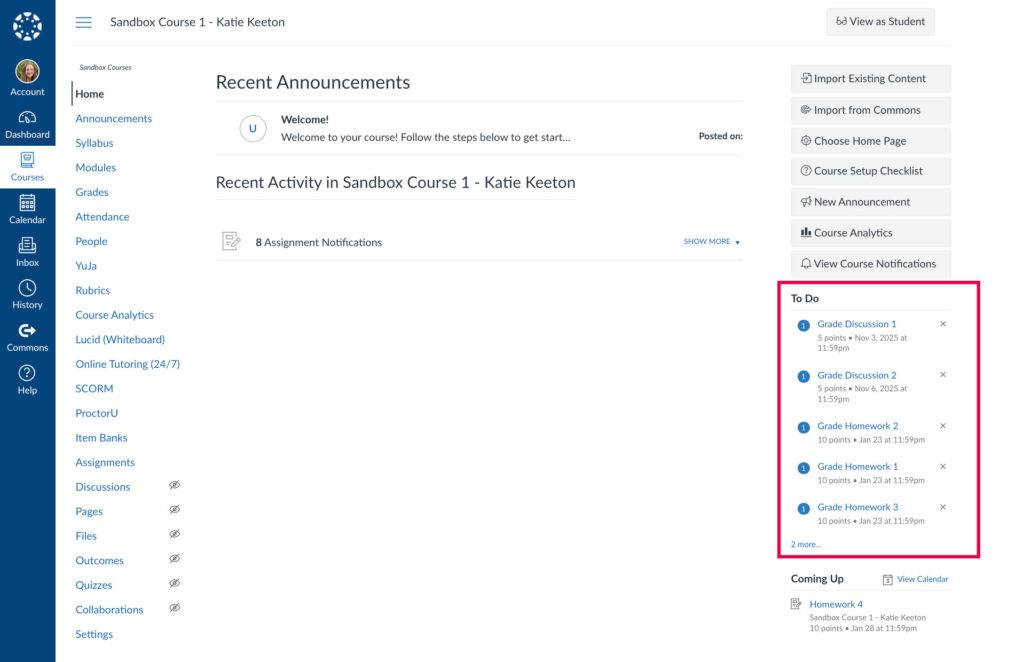
Instructors will also be notified on their home screen, under To Do (located on the right side of the Home Screen), when any submissions are ready for scoring.
SpeedGrader
Canvas uses SpeedGrader to view, score, and post feedback for assignments. Through SpeedGrader, you are able to view individual student submissions for assignments, quizzes, and discussions, input the students’ scores, and write individual feedback for students and assignments. If the assignment uses a Canvas Rubric, SpeedGrader also allows the instructor to score directly through the rubric.
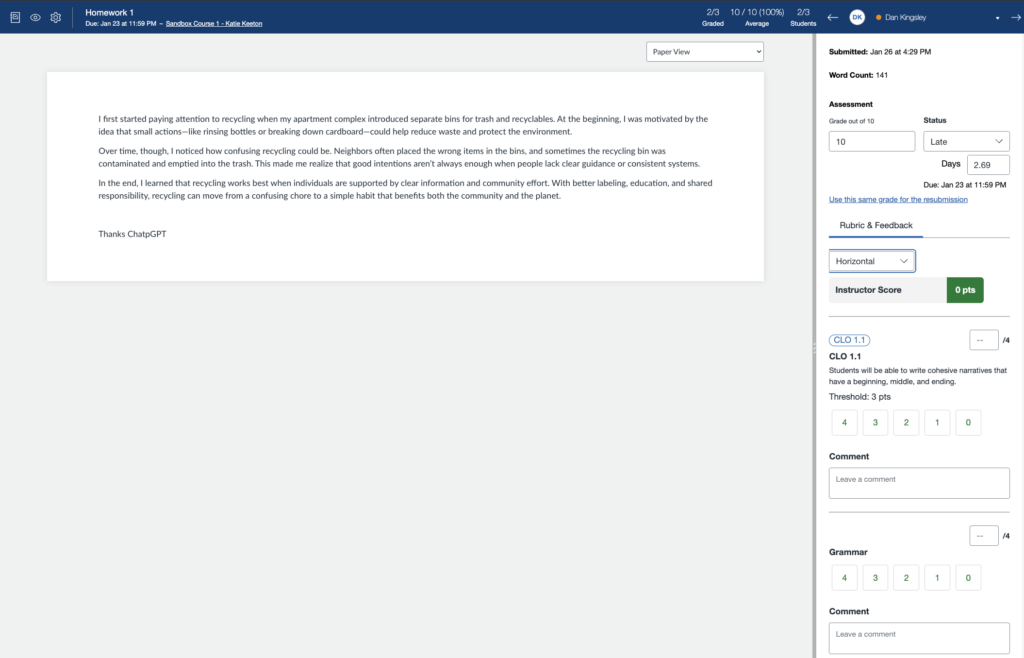
For more information on how to use SpeedGrader, check out these tutorials:
Grade Posting Policies
As you set up or customize your Gradebook, you have the option of telling Canvas whether you want grades to be posted automatically, meaning that as soon as you type a grade, it would be available to the student, or if you prefer that Canvas wait to display grades to students until you manually release each grade. Choosing to submit your grades automatically eliminates a step from your grading process because you won’t have to manually post each grade for each student, but using manual grading adds an extra level of control in your grading. Manual Grading also allows you to schedule grades and/or feedback to release on a specific date and time.
To learn more about how to adjust your Grading Policy settings, check out our tutorial, Use Grade Posting Policies in Canvas Gradebook.
Have Questions?
Need additional support on this or other teaching and learning topics? Please visit us for drop-in support or try one of our self-help tutorials.
Ready to take your teaching to the next level? Opt into our Connections with CTLD newsletter!