
Last updated on September 23, 2026
Videos uploaded to YuJa receive automatic captions, though it may take a few hours for them to appear after processing. This is an excellent feature which will save you lots of time! However, not all of the captions will be accurate- it’s a computer and cannot know your exact vocab or speech perfectly. Thankfully, editing the transcript files is quick and easy and takes much less time than writing the transcript from scratch.
YuJa also allows students to make caption edit suggestions through the video player using the same steps as below. If a suggestion was made, you will receive an email with the timestamp of the caption and a link to the video. From the video player, you can approve or reject any suggestions made.
Directions
[Length 5:13, CC Available]
- Log in to your Canvas Account.
- Select the Course you’d like to work in.
- Click YuJa on the left-hand course navigation menu.
- Alternatively, Open msudenver.yuja.com on your web browser.
- Click Sign In in the top right corner.
- Sign in using your MSU Denver login credentials.
- Alternatively, Open msudenver.yuja.com on your web browser.
- Click My Media on the left-side YuJa menu.
- Locate the YuJa Video you would like to edit captions for.
- For guidance on creating a YuJa video, see our tutorial, Use YuJa to Create and Upload Videos.
- Click the Video to open it.
Edit Captions Through Video Player
This is the quickest and easiest way to edit captions for YuJa videos. However, if you would like to replace multiple misspellings of the same word at once, see the section below: Edit Captions through YuJa Video Editor.
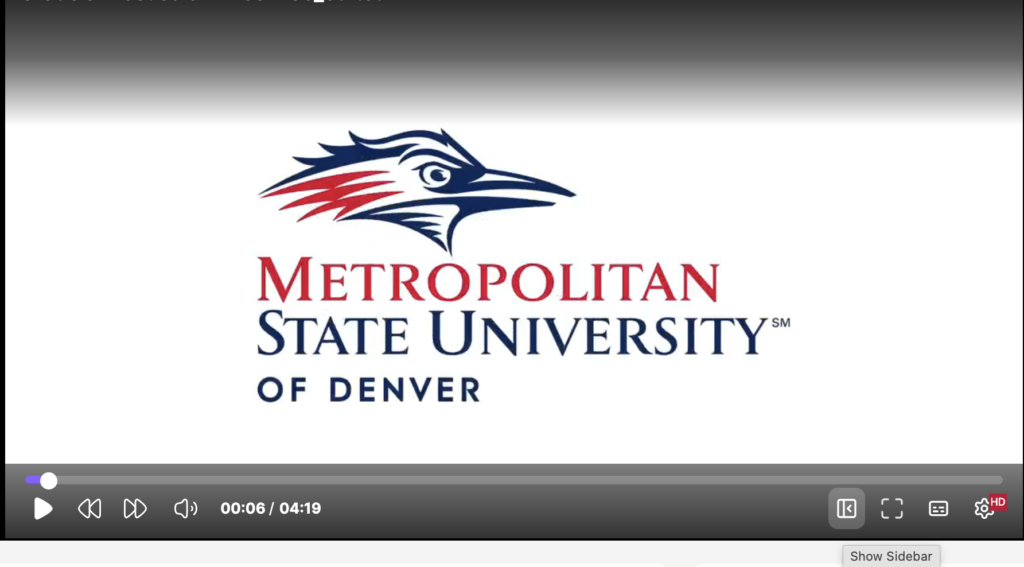
- Click the play icon in the center of the video.
- Hover over the video.
- Click the sidebar icon at the bottom right of the video.
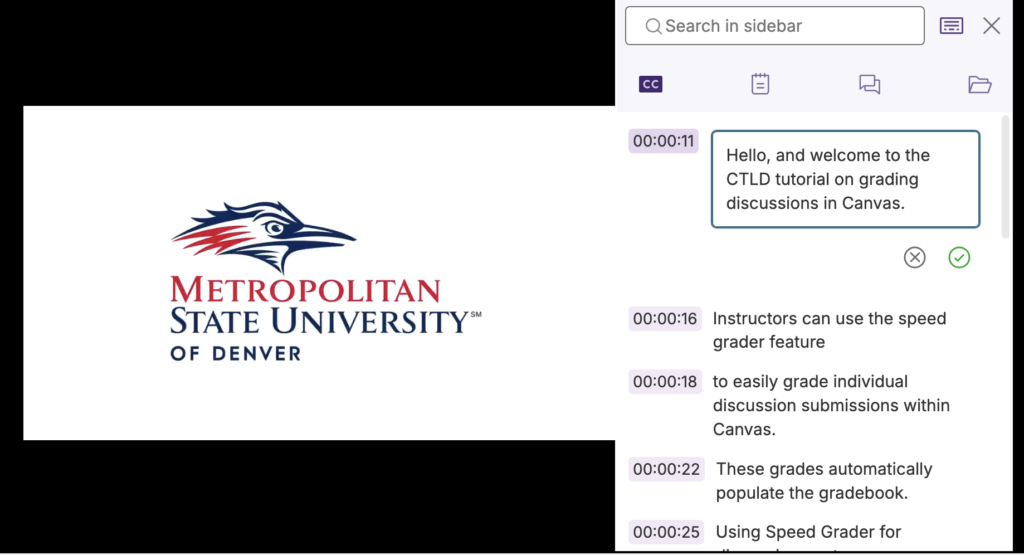
- A sidebar containing video details will open to the right of the video.
- Select Closed Captioning (CC) from the options at the top of the right panel.
- Click on a caption segment to edit it.
- Click the green checkmark under the caption to save your edits.
- Alternatively, click the X under the caption to discard your edit.
- Repeat steps for any captions that need editing.
- Click the X in the top right corner to close the right panel.
Edit Captions through YuJa Video Editor
- Click the Edit Icon (pencil in a box) from the menu next to the Video Title underneath the Video Player.
- A new window will open with the player and editing options available.
- Click the Captions icon on the left sidebar.
- Click on a caption segment to edit it.
- Note: You may edit caption segments from the transcript on the captions panel, or you can play the video and edit the captions directly from the video player.
- Use the Search Captions tool at the top of the left-side panel to quickly locate and replace misspelled terms.
- Type the misspelled word into the Search Captions text box.
- Note: The transcript will change to only show the caption segments where the word is found.
- Click the arrows to the right of the text box to move between segments where the word is found.
- Click Replace to the right of the Search Captions text box.
- Type the correct spelling for the word in the Replace with text box.
- Click Replace or Replace All.
- Replace: Only replaces the selected caption segment with the correct spelling.
- Replace All: Replaces all instances found with the correct spelling.
- Note: To return to the full transcript view, delete the word in the Search Captions Text Box.
- Type the misspelled word into the Search Captions text box.
- Click Save Project at the top right of the screen when you’re satisfied with your edits.
- A dialog box appears with a few options. The Title info box now has the title of the video, but with “_edited” appended to the end.
- Delete the “_edited” term from the title.
- Make sure the Update Transcript with Caption Edits toggle is turned on.
- Choose whether to keep the original video in My Media, or whether to recycle it from the Preserve Original dropdown menu.
- Click Replace to overwrite the original video and captions with your edits.
- Note: Any existing Canvas embeds, direct links, permissions, analytics, and other associations should now show the edited version.
- Alternatively, click Save as New Video to create a separate media item with a new embed code and links.
- A dialog box appears with a few options. The Title info box now has the title of the video, but with “_edited” appended to the end.
Best Practices for Writing Captions – Please reference this guide for guidance on how to appropriately caption videos, including cases of multiple speakers, background noise, and more.
If you need to enable auto-captions for your YuJa video, please review the CTLD FAQ on Enabling Auto-Captions.
Have questions?
Need additional support on this or other teaching and learning topics? Please visit us for drop-in support or try one of our self-help tutorials.
Ready to take your teaching to the next level? Opt into our Connections with CTLD newsletter!