
Last updated on September 21, 2026
The feedback you provide on students’ submitted work is critical to their success in your course, but students can also benefit from feedback from their classmates. Peer reviews can be valuable for both the reviewer and the recipient. By critically examining the work of their peers, reviewers build skills and knowledge they can then apply when reviewing their own work. By shifting perspective, reviewers can gain new insight into the purpose of the work you’re assigning and observe other students’ strategies for meeting the criteria you’ve established for the assignment. Peer reviews can also provide a meaningful avenue for student interaction that is particularly important to foster in online courses.
Canvas’ Peer Review tool is built into Assignments and is simple to implement. Using Canvas’ Enhanced Peer Review tool, you can now set independent due dates and point values for the original assignment and the peer reviews, and you can attach a Rubric for students to use when reviewing their peers. Additionally, Canvas can automatically assign pairs based on submission status, so a student won’t get assigned a peer review for a student who has not yet submitted the assignment. You may also choose to create ‘Rules’ to pair specific students together. These assignments can be anonymous or not based on your preference.
Note: Peer Review settings will not copy over when copying a Canvas course to a new shell. The original assignment will transfer, but your peer review configurations will be lost. You will need to manually reconfigure the peer review settings and allocation rules in the assignment settings.
Best Practices
When should I use this?
- Use Peer Reviews when students will benefit from input from their peers, such as when revising drafts of papers or evaluating experimental results.
- Peer Reviews can be even more effective if the Assignment has an associated Rubric, so reviewers understand exactly what criteria to evaluate.
- See our spotlight, Get Started with Enhanced Rubrics in Canvas, for guidance on creating and attaching rubrics to assignments in Canvas.
When should I set this up?
- Enable Peer Reviews when creating a Canvas Assignment.
- If you have an existing Assignment that you’d like to enable Peer Reviews for, you can do this by editing the Assignment.
- Use Peer Reviews as part of the drafting process to allow students time to make revisions based on feedback before the final is due.
- When designing lengthy assignments and projects with several drafts or submissions, consider at what points in the process peer reviews would be most useful to the students.
When should I not use this?
- Don’t use Peer Reviews if you think feedback could be confusing or misleading to the recipient or if the feedback would do little to help the recipient improve.
- This can be the case if Assignment instructions are too vague and reviewers don’t fully understand expectations.
- Peer Reviews are not effective when students cannot immediately implement the feedback they receive.
- Avoid having students review final work and instead give students an opportunity to revise their work after review.
Let’s walk through it together
Note: This video shows an outdated version of Peer Reviews. Please see the written tutorial below for updated directions.
Create a Peer Review Assignment
Create Parent Assignment
The Parent Assignment is the original assignment that students will submit to be reviewed by their peers.
- Log in to your Canvas Account.
- Select the Course you’d like to work in.
- Click Modules from the left-hand course navigation menu.
- Click the + icon to the right of the module you want to add the assignment to.
- Select Assignment from the item type drop-down menu.
- Click Create Assignment.
- Enter a title for the assignment in the Assignment Name text field.
- Click Add Item.
- Click the Assignment you just created to open it.
- Click Edit in the top right corner.
- Enter the Points the parent assignment is worth in the Points text field.
- Note: This is only the point value for the original assignment submission. You will set the point value for the Peer Reviews in the next section.
- Enter the Assignment Details and Instructions for the assignment.
- Note: Make sure to include directions for both the parent assignment and the peer reviews.
- For more guidance on assignment settings, see our tutorial, Create an Assignment in Canvas.
Enable and Configure Peer Reviews
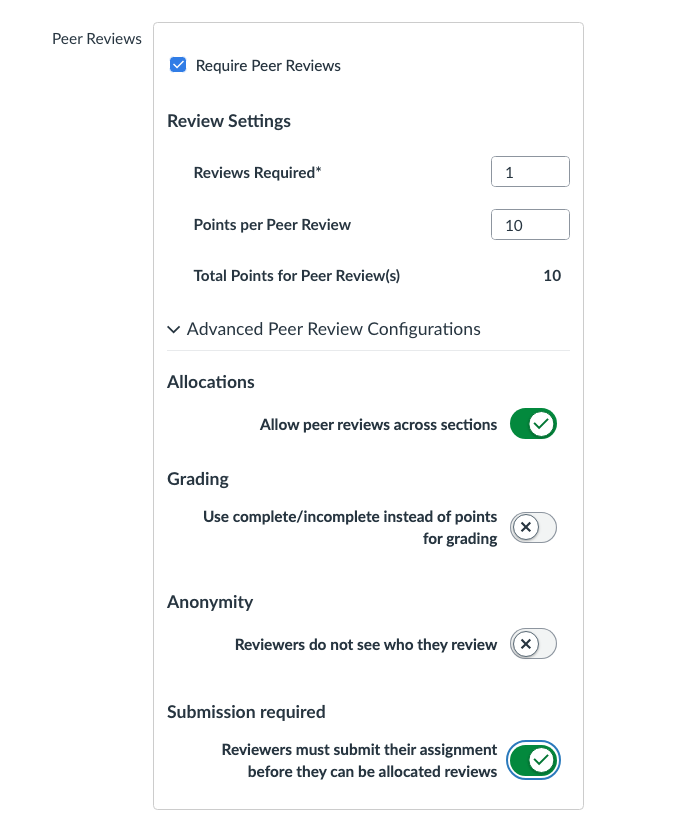
- Scroll down to the Peer Reviews section in the Edit Assignment Details page.
- Check the box next to Require Peer Reviews.
- Enter the number of Reviews Required.
- This is the number of peer reviews a student will complete.
- Enter the Points per Peer Review.
- Each Peer Review will go into the gradebook as a separate grade for students.
- Click Advanced Peer Review Configurations to open more setting options.
- Click the toggle next to an option to turn it on or off.
- Allocations: If your course has multiple sections connected to each other, turn this setting on to allow students from different sections to review each other’s work.
- Grading: Turn this on to count peer reviews as complete/incomplete in the gradebook instead of worth points.
- Anonymity: Turn this on to make the peer reviews anonymous to students.
- Submission required: Turn this on to require students to submit the parent assignment before Canvas assigns them any peer reviews.
- This will ensure students don’t get assigned a peer review for a student who has not submitted their work yet.
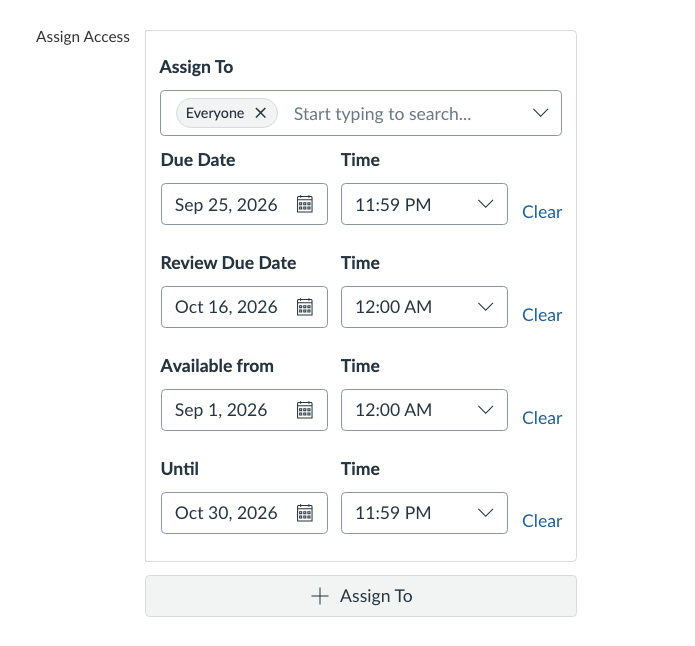
- Scroll down to the Assign Access section.
- Click the Due Date fields to select a date and time the original parent assignment is due.
- Note: Canvas will not start pairing students for peer review until after this Due Date has passed. If you have no due date, it will begin pairing students as soon as there are enough submissions to do so.
- Click the Review Due Date fields to select a date and time the peer reviews are due.
- Optionally, select an Available from and Until date to block students from accessing the assignment before or after a specific date.
- Note: The Available from date is only for the parent assignments, reviews will be available once the parent due date has passed. The Until date is for both the parent assignments and the peer reviews.
- Click Save or Save & Publish.
- Optionally, click Find Rubric at the bottom of the assignment page to attach a rubric for both the instructor and students to use when reviewing submissions.
- View our tutorial, Attach a Rubric to a Discussion, for more details.
Manually Allocate Peer Reviews
If you want to manually assign peer reviews to ensure specific students are paired together, you can create allocation rules.
- Click the Assignment to open it.
- Click Allocate Peer Reviews at the bottom of the assignment page.
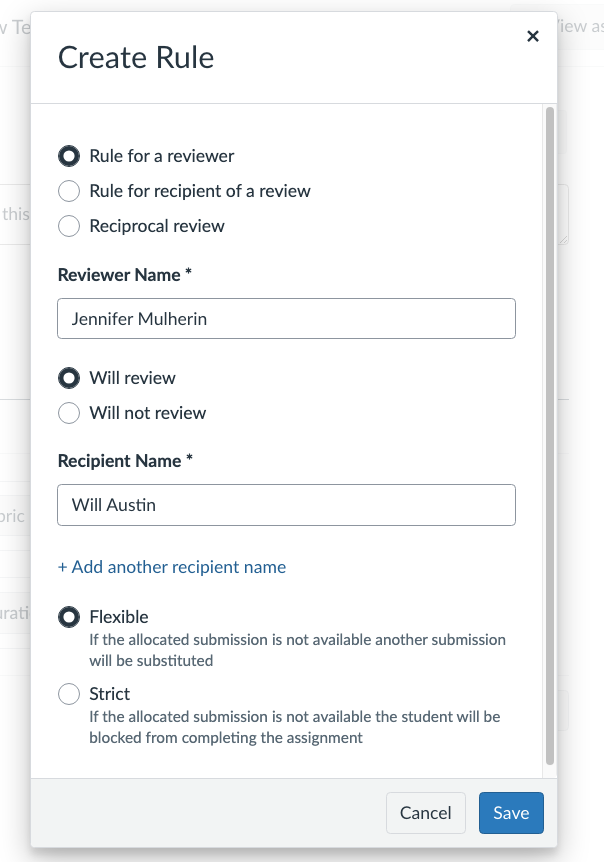
- Click + Rule from the right-side panel that appears. A pop-up will appear for you to create your rule.
- Selectwho the rule is for.
- Rule for a reviewer: Set specific peer review assignments or restrictions for a student by selecting who they can or cannot review.
- Rule for recipient of a review: Select who is allowed or not allowed to review a specific student’s submission.
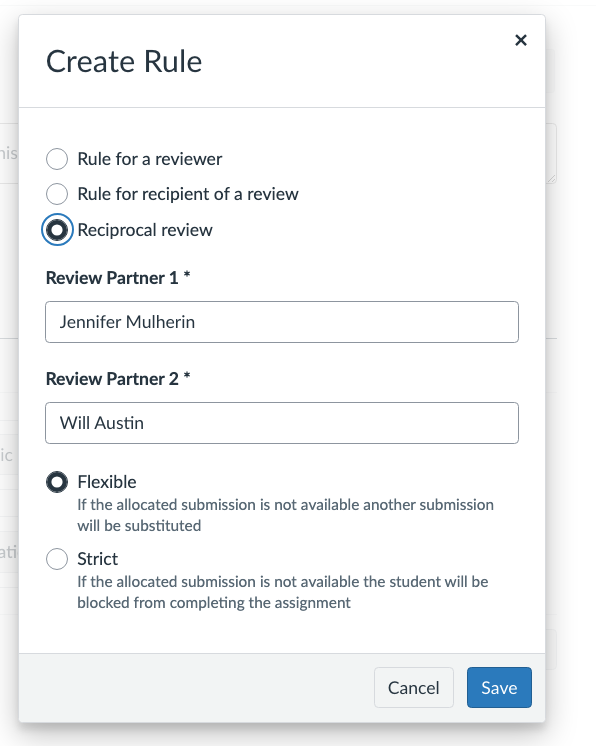
- Reciprocal review: Assign a pair of students to peer review each other’s submissions.
- Note: For Reciprocal review rules, you will only enter the two Review Partner names and select a rule type.
- Enter the Student Name you are creating the rule for.
- Recipient: This is the student who is having their work reviewed.
- Reviewer: This is the student who is completing the peer review.
- Review Partner: These are the students who will be paired together for reciprocal review.
- Select the Will review or Will not review button depending on whether you are assigning reviews or restricting certain review pairs.
- Enter the Student Name you are assigning or restricting a review for.
- Optionally, click + Add another recipient/reviewer name to add another student to the rule.
- Select the Rule Type.
- Flexible: If one or more of the paired students did not submit their parent assignment by the Due Date, the student who did submit will be assigned to a different student who has submitted.
- Note: A flexible rule treats your list of names as a prioritized menu of options rather than an absolute rule, meaning if you add more recipient/reviewer names than required reviews, Canvas will select from that list based on submission status.
- Strict: Canvas will not replace a peer review assignment if a parent submission is missing, meaning the student who did submit work will either not receive a peer review or will not be able to complete a peer review until their allocated peer submits their parent assignment.
- Flexible: If one or more of the paired students did not submit their parent assignment by the Due Date, the student who did submit will be assigned to a different student who has submitted.
- Click Save at the bottom right of the pop-up window.
Grade Peer Reviews
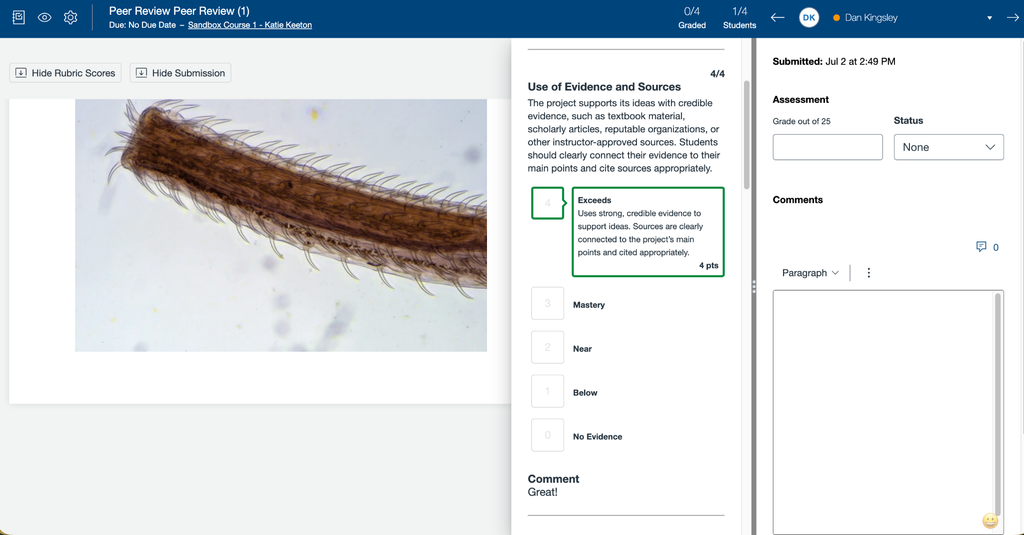
Each Peer Review, as well as the parent assignment, will appear as an independent assignment in the gradebook and can be graded through SpeedGrader.
- Click Grades from the left-hand course navigation menu.
- Locate the Peer Review in your gradebook.
- Note: Peer Reviews will be titled: [Assignment Name] Peer Review #.
- In default order, the Peer Reviews should appear directly to the right of the parent assignment. However, if you changed how your gradebook assignments are arranged, peer reviews may appear in a different order.
- Note: Peer Reviews will be titled: [Assignment Name] Peer Review #.
- Hover over the assignment name.
- Click the three dots that appear to the right of the assignment name.
- SelectSpeedGrader from the list of options.
- The parent submission being reviewed will appear on the left, the peer review will appear in the middle, and the instructor feedback and grades will appear on the panel to the right.
- Note: If the peer reviewer used a rubric, select Vertical or Horizontal view for the best viewing experience.
- Review and gradethe peer review.
- For more guidance on using Speedgrader, view our tutorial, Use SpeedGrader in Canvas.
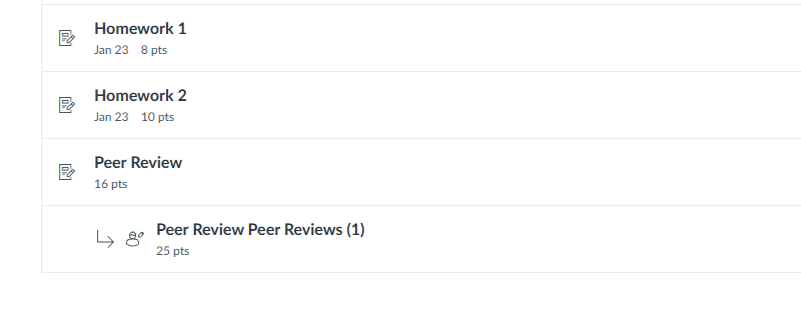
Note: Peer reviews will appear as a separate item under the parent assignment in Modules for students. It will be greyed out until the parent assignment due date has passed and they have been assigned a Peer Review.
When viewing the assignment in Student View, you will not see the Peer Review assignment. This is because the test student cannot engage in peer reviews.
Have Questions?
Need additional support on this or other teaching and learning topics? Please visit us for drop-in support or try one of our self-help tutorials.
Ready to take your teaching to the next level? Opt into our Connections with CTLD newsletter!