
Last updated on May 27, 2026
Canvas provides many opportunities for student interaction and feedback. Among these is a discussion tool that allows students to interact with each other in a forum using the Rich Content Editor. Students can post a response to a question or prompt you provide, and then reply to their peers’ responses. You may then provide feedback or grades to each discussion post.
Canvas Discussions also now support Graded Checkpoints, meaning you can include separate point values and due dates for the initial response a student makes to a discussion and any required follow-up replies.
Contents
Directions
Create Discussion without Graded Checkpoints
- Log in to your Canvas Account.
- Select the Course you’d like to work in.
- Click Modules in the left-hand course navigation menu.
- Locate the module to which you would like to add a discussion.
- Click the + icon in the top right-hand corner of the module.
- Click the drop-down menu that says “Assignment”.
- Select Discussion from the list.
- Click Create Topic.
- Enter a Name for the discussion in the Topic Name text field.
- Click Add Item in the bottom right-hand corner.
- Click the Name of the discussion at the bottom of the module.
- Click the More Options (3 Dots) icon in the top right-hand corner of the discussion.
- Click Edit.
- Enter a Prompt for the discussion in the large text field.
- Select the Options you would like for the discussion.
- Anonymous Discussions will hide the names and profile pictures from students’ replies. If partial anonymity is selected, students will have the option to reveal their information in their replies. Both partial and full anonymous discussions will disable grading.
- Disallow Threaded Replies prevents students from replying to their peers’ responses. They will still be able to view all responses, but they will only be able to reply directly to the main prompt.
- Participants must respond to the topic before viewing other replies will hide any responses to the prompt until the student posts their initial response.
- Enable Podcast Feed is an advanced option to allow for integration with podcast services. This is generally not advised.
- Graded discussions will allow you to assign a point value to the discussion.
- Assign graded checkpoints will let you assign a point value and due date for a student’s first reply to the topic, and then a second point value and due date for any follow-up replies the student is required to submit (see section below for additional steps).
- Allow liking will give students the option to leave a “like” on another student’s reply. You can also only allow graders to like replies.
- This is a group discussion will allow you to assign groups for the discussion. Students will only see replies from other students in their groups. Select the appropriate group set from the drop-down menu if this option is selected.
- See our tutorial, Set Up Small Group Discussions, for more guidance.
- Select the View options you would like for the discussion.
- Default Thread State: Students can adjust these settings for themselves unless you select to Lock thread state for students.
- Collapsed will display only the students initial responses by default. Students can click on a response to view any replies (this is recommended).
- Expanded will display all initial responses and replies when you open the discussion.
- Default Sort Order: Select whether the Oldest or Newest posts will be shown first. Students can adjust these settings for themselves unless you select to Lock sort order for students.
- Default Thread State: Students can adjust these settings for themselves unless you select to Lock thread state for students.
- Enter the total points in the Points Possible field.
- For discussions using Grade Checkpoints, see directions below.
- If using a rubric for grading, this must match the total points possible in the rubric. See our tutorial, Attach a Rubric to a Discussion, for more guidance.
- Click the Display grade as dropdown menu to select a grading option other than Points (the default), such as percentage, complete/incomplete, or letter grades.
- Select the Assignment Group the discussion should be sorted into.
- Optionally, select a Peer Review option.
- This will make it so students only see the posts for their assigned peers. Students will not be able to reply to responses, rather they will provide feedback to their assigned peers. Leave off selected to create a traditional discussion board.
- See our spotlight, Peer Reviews, for more guidance on setting up Peer Reviews.
- Click the Due Date fields to select a date and time the discussion will be due.
- Optionally, select an Available from and Until date to block students from accessing the discussion before or after a specific date.
- Click Save and publish in the bottom right of the screen.
Create a Discussion Using Graded Checkpoints
Note: Rubrics cannot be used for grading when using graded checkpoints. They may still be attached to an assignment and scored for instructor use and student viewing in Speedgrader, but the grades will not sync with the rubric score.
- Follow steps 1-20 in the above section (skip step 17)
- Select Graded, then Assign graded checkpoints from the Options menu.
- Enter the total points a student can receive for their initial response in the Points Possible: Reply to Topic field.
- Enter the amount of replies to peer responses required in the Additional Replies Required field.
- Enter the total points a student can receive for replies to peer responses in the Points Possible: Additional Replies field.
- Click on the Reply to Topic Due Date fields to select a date and time the students’ initial response will be due.
- Click on the Required Replies Due Date fields to select a date and time the replies to peer responses is due.
- Optionally, select an Available from and Until date to block students from accessing the discussion before or after a specific date.
- Click Save and Publish at the bottom right of the screen.
Grading Discussions with Graded Checkpoints
- Discussions using graded checkpoints will still appear as one assignment in the gradebook.
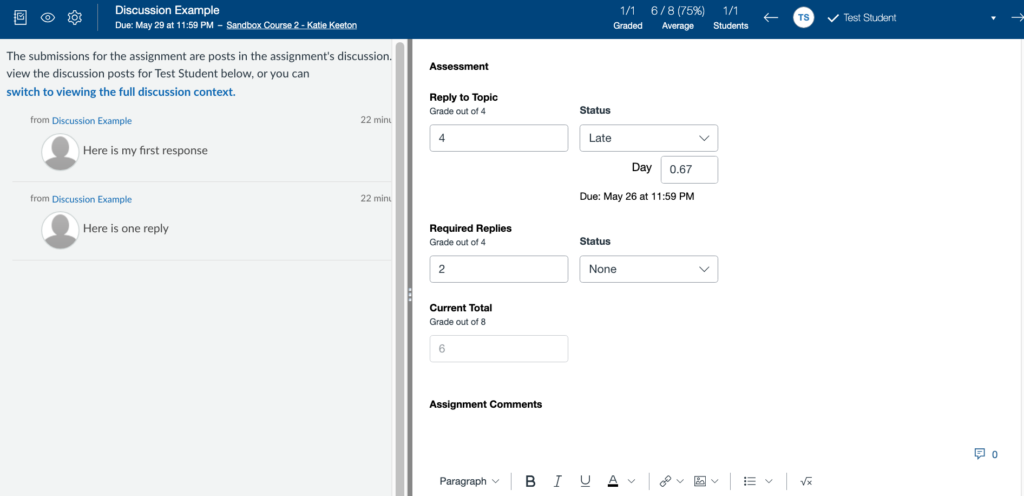
- When grading the discussion in Speedgrader you will input a score for both the Reply to Topic and the Required Replies.
- The students total grade for the discussion will update automatically based on each checkpoints score.
- If one of the checkpoints is missing or submitted late, speedgrader will display the days late beneath the checkpoint status.
- Any late or missing policies will be applied to each checkpoint individually, rather than to the total assignment points.
Have questions?
Need additional support on this or other teaching and learning topics? Please visit us for drop-in support (10am-3pm, M-F) or try one of our self-help tutorials.
Ready to take your teaching to the next level? Opt into our Connections with CTLD newsletter!