
Last updated on February 3, 2026
Note: This is the fifth of five sections of a Canvas Spotlight series on Grading in Canvas. Below is a list of the other sections:
- Grading in Canvas
- Identify What Can and Cannot be Graded in the Canvas Gradebook
- Understand How Students Interact with the Canvas Gradebook
- How to Set up and Customize the Canvas Gradebook
- How Assignment Groups Impact the Canvas Gradebook
A well-organized course can be the difference between a student who feels confident in their ability to succeed and a student who feels lost, unsure of what matters, and tempted to disengage. A lack of structure in Assignment Groups leads to confusion in the Gradebook, making it difficult for students to understand how each assignment factors into their grade, whether they are on track to meet course expectations, or what actions they should take to improve.
Instead of one long list of assignments, you can sort quizzes, assignments, and discussions into categories that reflect the structure of your syllabus. These groups can be weighted, used to drop scores, and are connected directly to the Gradebook. When categories and grading policies, such as weighted or dropped scores, match what is described in the syllabus, students can quickly understand which assignments carry more weight, how they are doing in each area, and where they may need to focus more. Assignment Groups bridge the gap between the syllabus and the Gradebook, creating a clear roadmap for better organization, clearer communication, and accurate grade calculation.
This Spotlight will walk through why and when to use assignment groups, how they are connected to the Syllabus and Gradebook, and the difference between a poorly constructed and well-organized Gradebook.
Best Practices
Why and When to Use Assignment Groups
- Keep assignments organized and easy to find: Assignment groups let you sort assignments into specific groups (ie, Homework, Discussions, Exams, etc.), making it easier for you to find specific assignments.
- Make the Gradbook reflect your syllabus: Assignment groups are directly tied to how the Gradebook will appear for you and for your students. Creating Assignment Groups allows you to match the categories and language in your syllabus.
- Weight Assignment Groups: If your syllabus states that exams are worth 40%, homework is 30%, and projects are 30%, you can use assignment group weights in Canvas to calculate the weights for you.
- Drop Scores: Assignment Groups allow you to create rules to drop certain scores (such as the lowest score) in a group.
How are the Syllabus, Assignment Groups, and Gradebook Connected?
- The syllabus outlines the grading policy, so students know what to expect: The syllabus is often the first touchpoint for students in understanding how each assignment will impact their overall grade. A well-constructed syllabus will define how many assignments they will have to complete in each category and how their total grade will be calculated based on points, weighted grades, and dropped scores.
- Assignment Groups implement the grading structure in Canvas: Assignment Groups organize assignments into specific categories, and allow for group weighting and dropping scores. Assignment Groups should reflect the categories and grading policies laid out in the syllabus.
- The Gradebook Applies the Assignment Group Structure: The Canvas Gradebook will automatically apply the grouping and calculate grades based on any rules created in the Assignment Groups. If the Assignment Groups are created to mirror the syllabus, the Gradebook will also mirror the syllabus, making the Gradebook more organized and easier to understand for students.
What are some Common Pitfalls and How can I Make a Well-Organized Gradebook?
As you create your assignment groups, you can use the following to evaluate whether your assignment groups and Gradebook are well organized.
Common Pitfalls
- Using unclear or inconsistent grading categories that don’t align with the syllabus.
- Forgetting to delete default, imported Assignment Groups, or empty assignment groups.
- Leaving assignments unsorted or sorted into incorrect Assignment Groups.
- Not updating group weights or dropping rules to match the syllabus.
- Allowing mismatches between what the syllabus describes and what the Gradebook actually calculates.
Guiding Questions: How to Make a Well-Organized Gradebook
- Are your grading categories clearly defined in your syllabus?
- Do your Assignment Group names match those categories?
- Have you removed leftover or default groups that no longer apply?
- Are all graded assignments, including discussions and quizzes, placed in the correct group?
- Do your weights and drop rules align with what’s written in your syllabus?
Case Studies
Now, let’s look at two examples of an Assignment Group: one course with poorly constructed assignment groups, and another with a clear and intentional structure. Both examples will show the instructor’s view of the Assignment Groups, as well as the student’s view of their Gradebook.
Poorly Constructed Assignment Groups
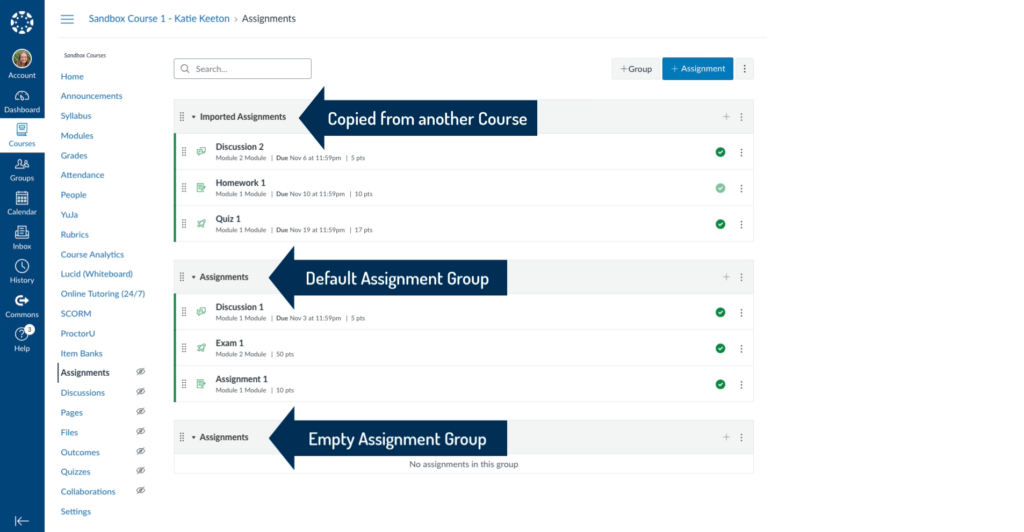
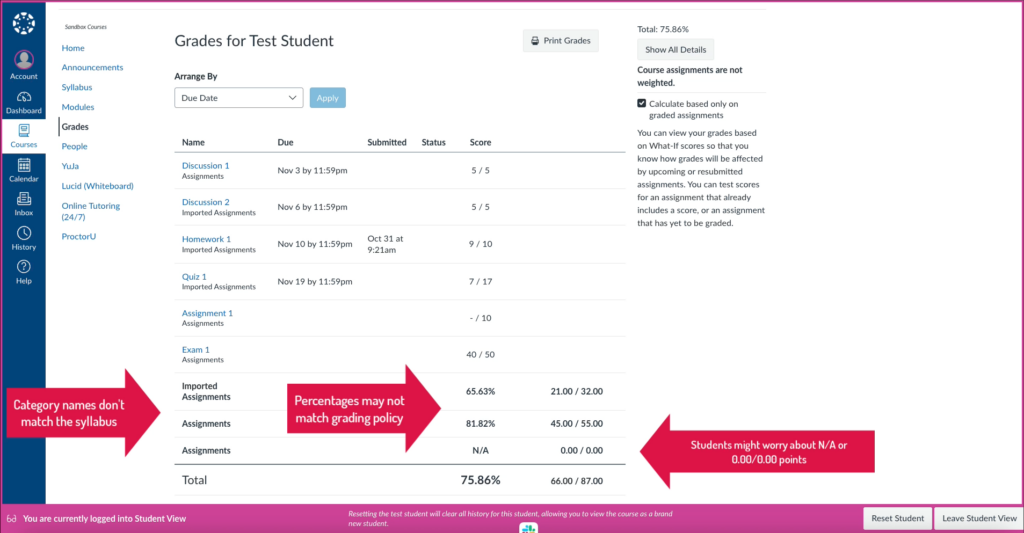
The example below showcases a course where the assignments are not organized into clear categories based on the syllabus. Instead, some assignments are sorted under Assignments, while others are under Imported Assignments, meaning they were copied over from another course and never moved into a different group. There is also a second assignment group that is empty, potentially a group that was also copied over from a previous course.
Key Takeaways
- If assignment groups aren’t organized, instructors have to sift through a long, cluttered list, making it harder to quickly find specific assignments during the semester.
- Groups that don’t reflect the syllabus make it confusing for the students. It is unclear on their end the difference between Imported Assignments and Assignments, and whether one impacts their grade more.
- The percentages next to each group do not have any impact on the student’s total score, as there is no clear categorization or grading policy reflected in the gradebook, which could make it difficult for students to understand how their total grade was calculated.
- An empty group can cause unease for students, thinking they may be missing work or unsure if the zero out of zero points impacts their total grade.
Well-Constructed Assignment Groups
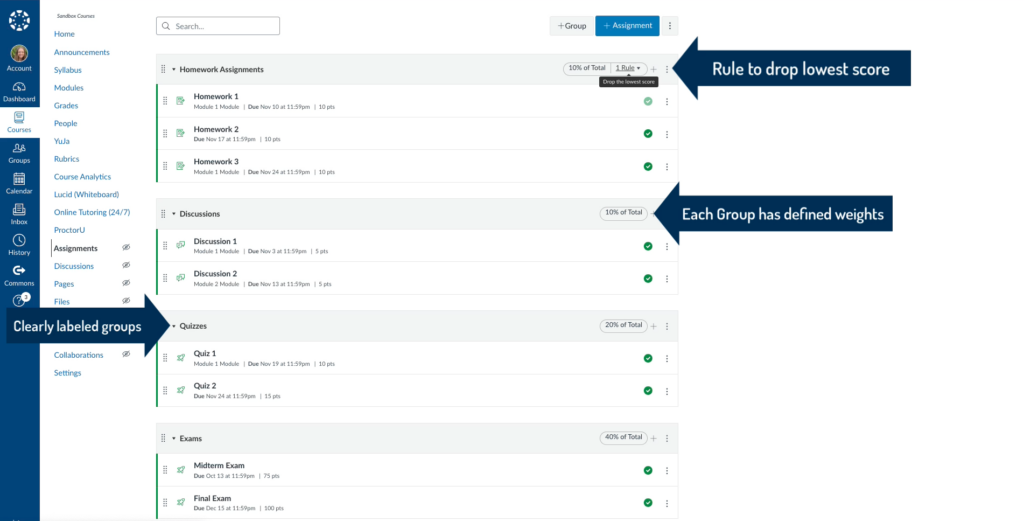
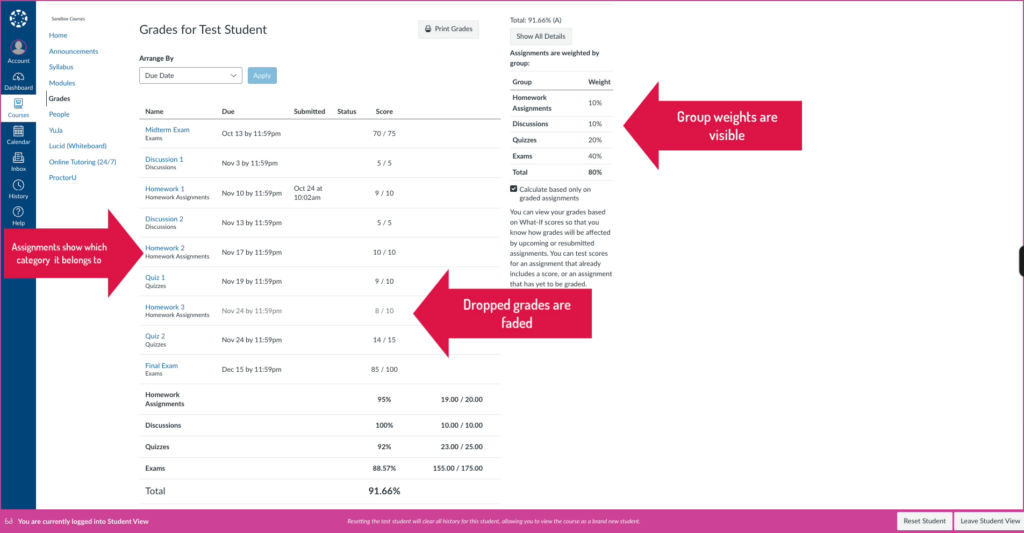
The example below showcases a course with clear and organized Assignment Groups. The groups are clearly labeled (Homework Assignments, Discussions, Quizzes, and Exams). Each group has weighted scoring, and the Homework assignment has a rule to drop the lowest grade.
Key Takeaways
- Having clear assignment groups allows the instructor to find specific assignments easily by only having to look under the assignment’s designated group.
- The instructor can easily identify areas of strength and areas of struggle for individual students by looking at the grades for each category.
- Students can view the group weights on the right-hand side of the student gradebook, making it clear how each category’s score impacts their total grade.
- Students can clearly see how each assignment is categorized by looking under the assignment title, allowing full transparency for how each assignment is counted toward the total grade.
- Homework 3 is faded out, showing the student that the score was dropped from their final grade.
Let’s Walk through it Together
Edit Assignment Groups
- Log in to your Canvas Account.
- Select the Course you’d like to work in.
- Click Assignments on the course navigation menu to the left.
- Click +Group on the top of the screen to add a new Assignment Group.
- Click the 3 dots (More Options Menu) and select Delete to delete an assignment group.
- Click the dots to the left of the group or assignment name to drag-and-drop an assignment to a new location or group.
- You can move an assignment by clicking the 3 dots to the right of the assignment title, and selecting Move To from the drop-down menu.
- Click the + icon to the right of an assignment group to add an assignment directly to the group.
- Note: This will not add the assignment to a module. You will need to do that yourself. Look at the steps below to learn how to add an Assignment Group to an assignment through Modules.
Edit Assignment Groups Weight and Drop Scores
- Click the More Options Menu (three vertical dots) next to the blue + Assignments Button.
- Select Assignment Groups Weight.
- Check the box that says Weight Final Grade Based on Assignment Groups.
- Enter Numbers in the boxes to show the weight of each category.
- Click Save.
- Click the More Options Menu (three dots) to the right of the Assignment Group you want to drop a score in.
- Select Edit from the drop-down menu.
- Adjust the Number of scores to ignore for each student within the lowest or highest scores.
- Click Add an assignment next to Never Drop to select an assignment that should not be dropped, no matter what.
- Click Save.
To read more about how to use Assignment Groups to Organize your Course and Gradebook organization, check out the CTLD tutorials below.